Reviewing AI-drafted records
Every AI-drafted record starts unreviewed. The Review desk is where you work through what's waiting, check each record against its source, amend what's wrong, and accept it.
Where to find it
Review in the workspace sidebar. The page is headed What's waiting.
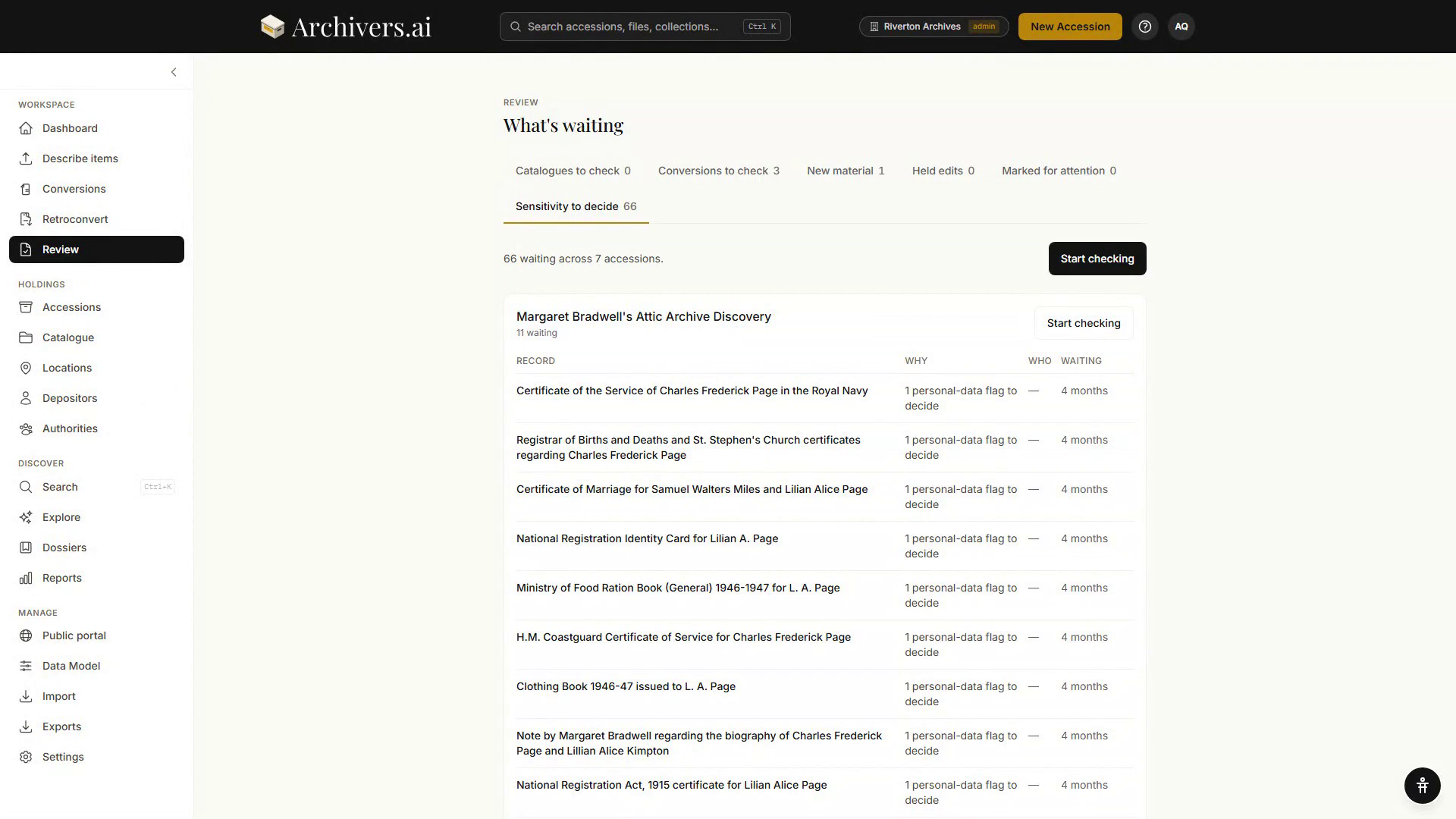
Above the list, a line states the size of the queue — for example 66 waiting across 7 accessions — and Start checking opens the first record. Each accession is its own group, with its own waiting count and its own Start checking.
The views
The desk is split into views, each with a live count:
| View | What's in it |
|---|---|
| Catalogues to check | Catalogue records waiting on a check |
| Conversions to check | Batches from Conversions waiting on a check |
| New material | Records captured in the field, held for a member of staff to confirm |
| Held edits | Edits submitted for confirmation rather than applied directly |
| Marked for attention | Records someone has flagged |
| Sensitivity to decide | Records with a personal-data or sensitivity flag still open |
Rows can be accepted from the list itself — Accept on a row, or Accept all over a selection (up to 200 at a time). Where something is outstanding the accept is refused with a link to open the record and check it.
The list itself has four columns — Record, Why (what is outstanding, e.g. 1 personal-data flag to decide), Who (the person it's assigned to, or a dash) and Waiting (how long it has sat there).
The check screen
Checking opens a two-column screen: the source on the left, the drafted record on the right.
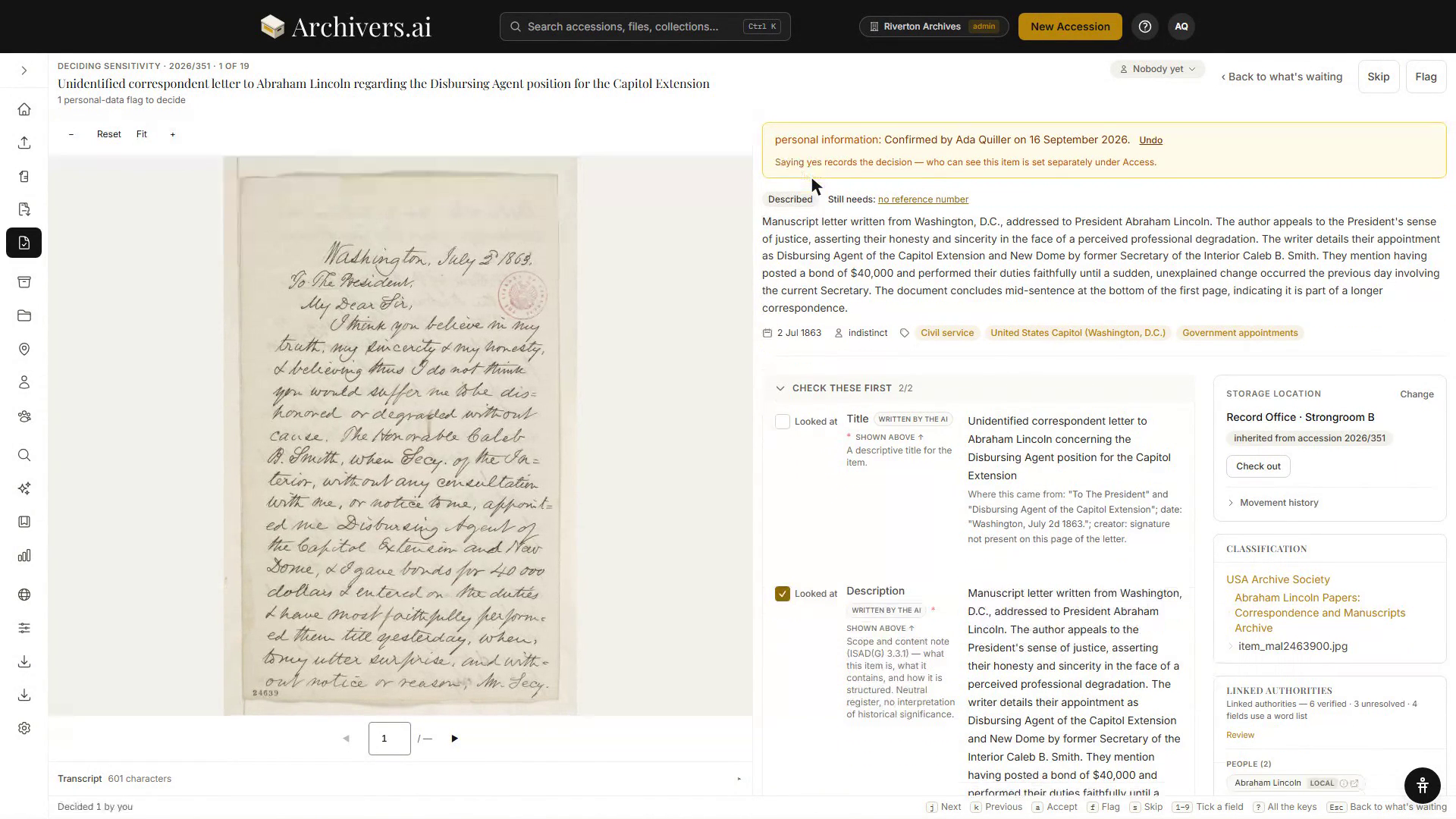
- Left — the source. The page image with −, Reset, Fit and +, a page pager beneath it, and a Transcript drawer at the foot showing the character count. Where the item is audio or video, the transcript is the source you read against.
- Right — the record. A header strip with the accession number and a position counter (1 of 19), the item's status (Described, plus a Still needs line for anything missing, such as a reference number), the drafted description, the date, and the linked subject pills.
- Check these first. The fields that most want a human eye, with a n/n counter and a Looked at tick beside each one. Fields the model wrote carry a Written by the AI marker, and each shows the guidance note for that field plus a Where this came from line quoting the source text the value was drawn from.
- Also worth having. The remaining fields, below, including any per-field warnings the model emitted.
- Side panels. Storage location (with Change, Check out and Movement history), classification and source file, linked authorities with their verified and unresolved counts, linked records, and Identity — reference, parent reference, level, former reference, legacy classification and the record's permanent link.
Open sensitivity flags are answered at the top of the record: Yes, it does / No, false alarm. Once answered, the banner records who decided and when, with Undo.
Amending a record
Click a value to edit it in place; Save and Cancel appear beside the box. Anything the AI drafted is editable — the model proposes, you dispose.
At the record level, the header offers an assignment control (Nobody yet) listing the people in the workspace with their roles, Skip to move on without deciding, Flag to mark the record for attention, and Back to what's waiting.
Keys
A key strip runs along the foot of the check screen:
| Key | Action |
|---|---|
j / k | Next / previous record |
a | Accept |
f | Flag |
s | Skip |
1–9 | Tick a field as looked at |
? | All the keys |
Esc | Back to what's waiting |
Records are accepted from the check screen itself, and the footer keeps a running tally of what you've done in this sitting.
History
Each record carries a History panel.
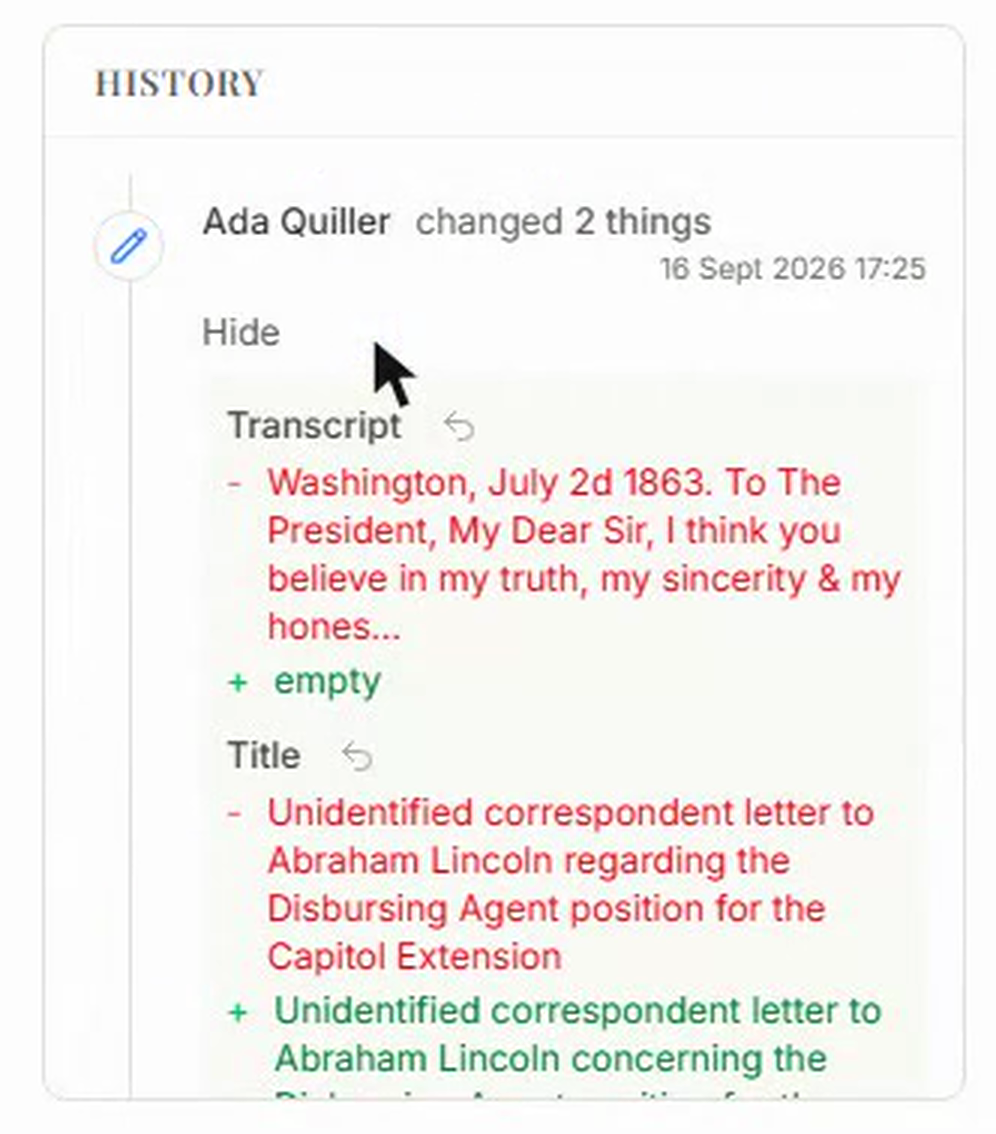
An entry names the person, how many things they changed and the date and time. Expanding it lists each field with its before value and its after value side by side, and a revert arrow beside each field so a single change can be put back.
What acceptance means
- Acceptance is the gate to publication. Unreviewed records are held back from the public portal — the publish pre-flight counts them for you. See Publishing, scheduling and unpublishing.
- Unreviewed material stays in the workspace. It remains visible and searchable internally, so staff can keep working with material in progress.
- Accept is a workflow signal, not a lock. An accepted record can be re-opened and edited.
See also
- Reviewing AI Classifications — item-by-item review inside a single accession
- How AI Processing Works — what produced the draft in the first place