Creating an Accession
The end-to-end walkthrough for creating a new accession. The wizard is six steps — most of them are quick.
Before you start
- Have your files ready (on your computer or accessible via the browser).
- Have a one-line description in mind ("Correspondence and manuscripts from the Shaftesbury Estate, 1956–1967"). Optional but materially improves AI accuracy.
- Check the Items this month card on your Dashboard — make sure you have quota remaining.
Step 1 — Describe Collection
Click New Accession in the top bar. The first step is Describe Your Collection.
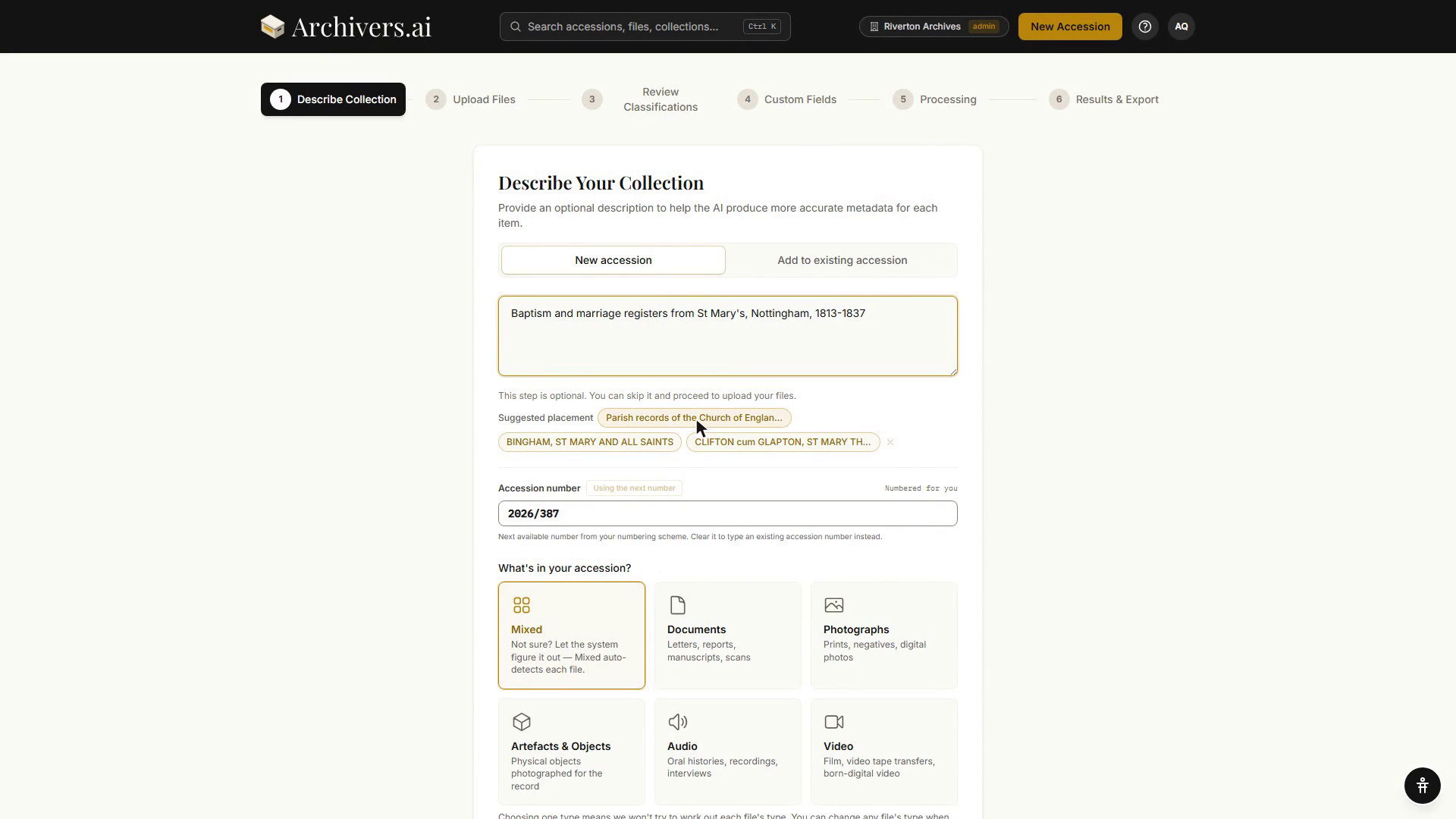
Things on this screen:
-
Accession number (pre-filled). The platform suggests the next number in your organisation's sequence (e.g. "2026/001" for yearly numbering, or "ACC-042" for continuous numbering). Use the next number puts the suggestion back if you've typed over it, and the caption says which you're using — Numbered for you or You typed this. Clear it and type your own for back-cataloguing; a hand-typed number leaves the next number in your scheme unused. Once assigned, only a workspace admin can change it, from the accession's own page, and the change is written to the audit trail. Configure your numbering format in Settings → Numbering.
-
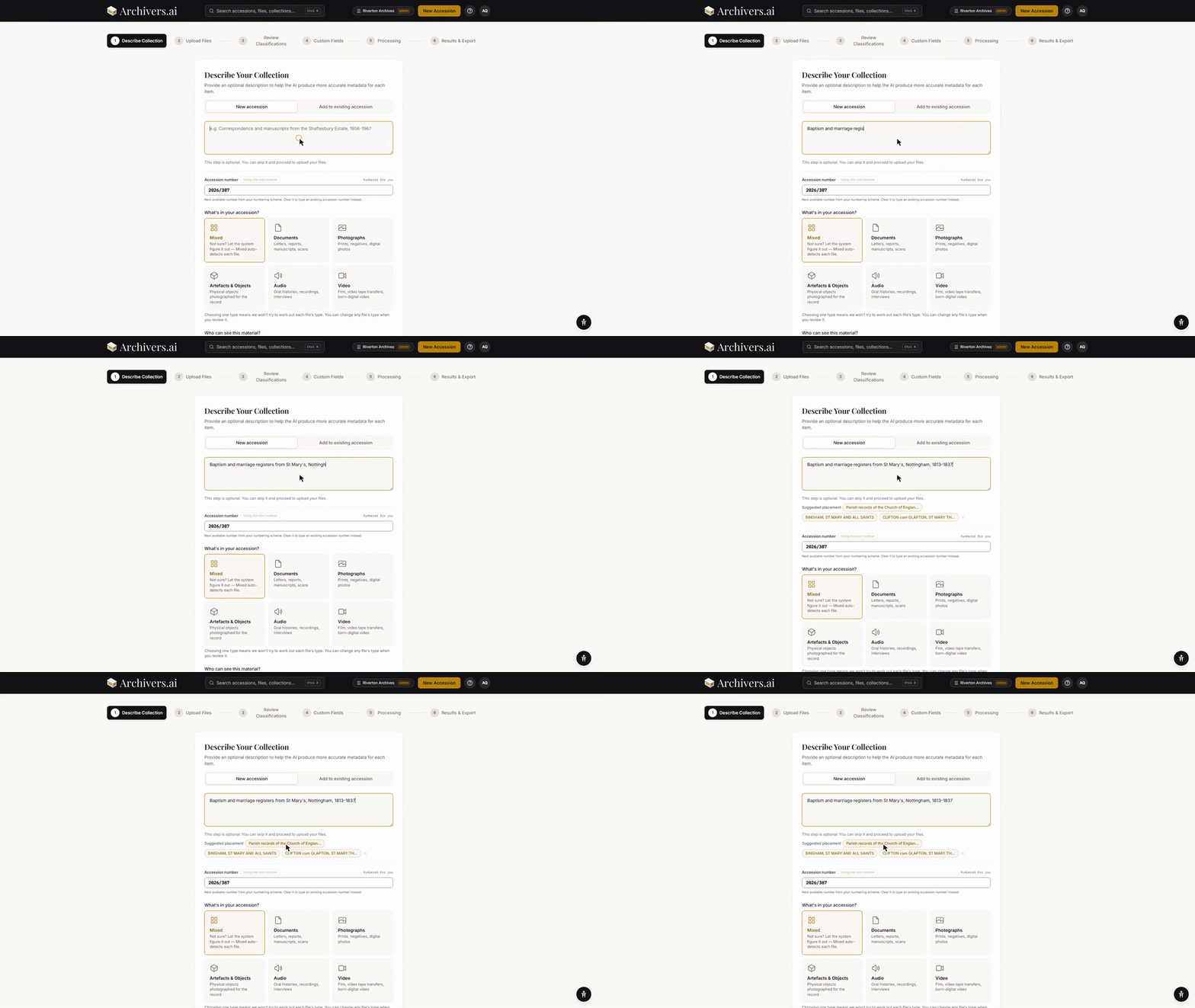
Description (optional textarea). Anything you write here is passed to the AI as orientation. Put down what the collection actually is — period, provenance, subject matter. As you type, the platform shows Suggested placement below the description — quick proposals for where this accession might belong in your hierarchy. The suggestions are matched against your existing collections by meaning, so they need the workspace's meaning-search switch on; click one to file the accession there, or ignore them and file it later.
-
Who can see this material? — one of:
- Decide per item — the system suggests, you review
- Open — open to the public
- Restricted — viewable on request or with conditions
- Closed — staff only for now
This answer applies to all items in the accession unless you override it on individual records after processing.
-
What's in your accession? — pick a collection type:
- Mixed — several types, let the AI auto-detect each file (this is pre-selected by default)
- Documents — letters, reports, manuscripts, scans
- Photographs — prints, negatives, digital photos
- Artefacts & Objects — physical objects photographed for the record
- Audio — oral histories, recordings, interviews
- Video — film, video tape transfers, born-digital video
As you type the description, suggested placements appear underneath it:
Mixed is recommended for accessions with multiple file types — the AI auto-detects each file's category, ensuring that photos-of-text get OCR, for example. If you pick a single type, per-file auto-categorisation is skipped (though you can still override any file individually in Step 3).
Beneath the tiles sit the register-entry questions — How much arrived, Dates of the records and Public records (material transferred under the Public Records Act) — and a Depositor (optional) picker for linking or creating the depositor there and then.
Three collapsible drawers hold the rest, all optional and all applied to the whole batch:
- Details about the whole collection — Repository Name, Collection Title, Collection Reference, Date Range, Archivist and Associated place
- Donor & provenance — Donor Name, Donor Contact, Acquisition Method (Donation, Deposit, Bequest, Purchase, Transfer or Unknown), Acquisition Date and Provenance Notes
- Completeness & scope — what was selected, what is expected in future, and what is known to be missing
There's also a Collection assignment drawer if you'd rather file the accession now than later.
Click Next.
Step 2 — Upload Files
Drag from your file manager, or click Browse files. Uploads run in parallel and the page tells you what's done, in flight, and waiting.
Limits by plan:
| Plan | Items per accession | Max file size (doc / image / audio / video) |
|---|---|---|
| Community | 10 | 10 MB / 10 MB / 50 MB / — |
| Starter | Unlimited | 50 MB / 500 MB / 500 MB / 2 GB |
| Professional | Unlimited | 50 MB / 500 MB / 500 MB / 2 GB |
| Institution | Unlimited | Unlimited |
See Uploading Files for supported formats per category.
Files on the Community (free) plan are automatically deleted after 28 days. Upgrade to keep your archive permanently.
Step 3 — Review Classifications
Once processing finishes, every item gets a metadata record. The review screen lets you check and correct what the AI inferred.
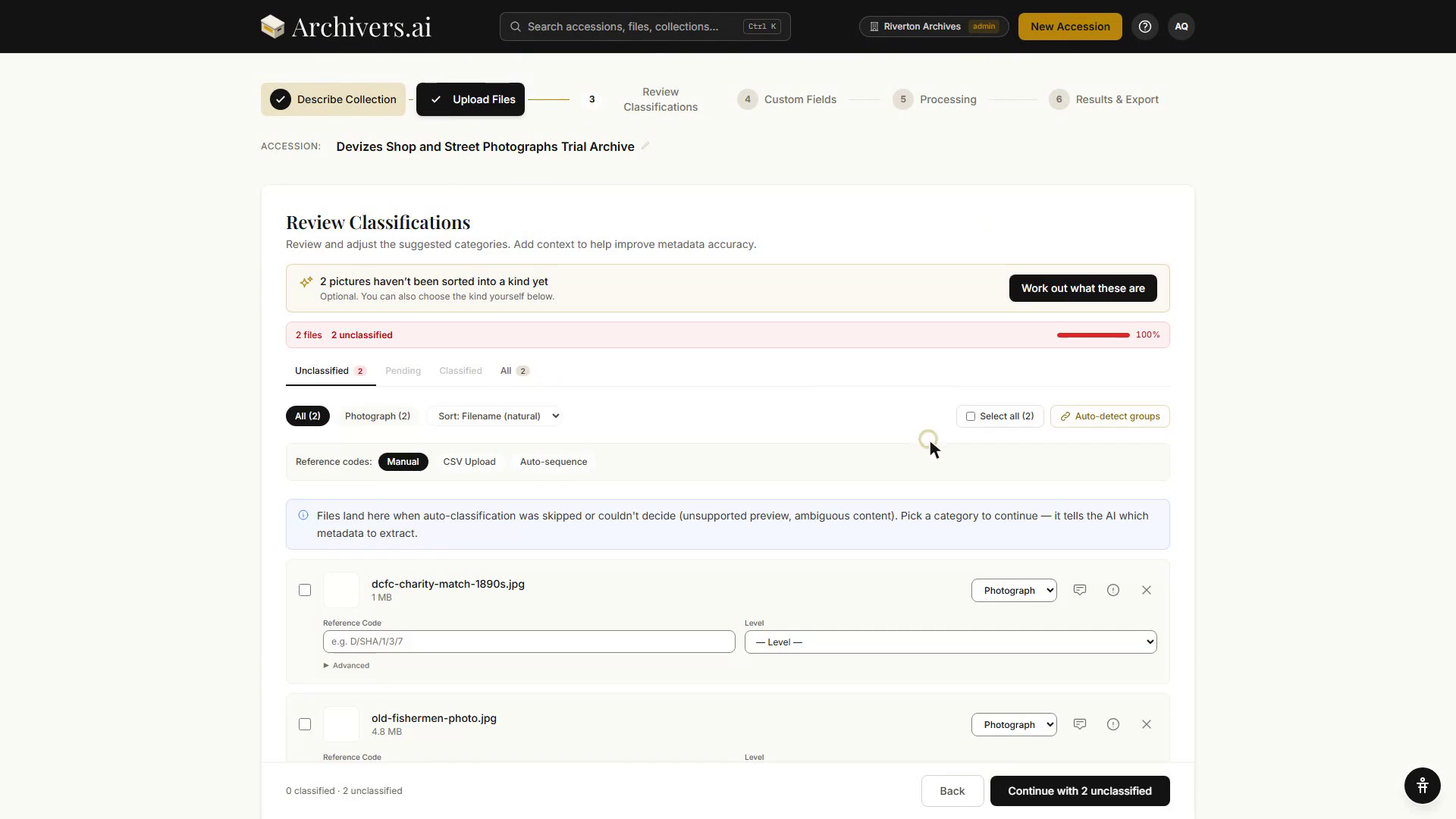
What you can do here:
- Switch between list and table view (icons at top left)
- Filter by All or Flagged — see only what needs attention
- Expand a row to view and edit every field in that item's schema
- Accept by category — bulk-approve one category at a time
- Play audio and video inline (the speaker / play icon on media rows)
See Reviewing Classifications for the detail.
Step 4 — Custom Fields
If your organisation has defined extra fields in Settings → Data Model (donor reference, internal accession number, box location, anything else), the wizard surfaces them here so you can fill them in once. Skip if there's nothing relevant.
Step 5 — Processing
Background processing runs OCR, transcription, classification, and authority resolution. You can close the tab; you'll see the in-progress accession on your Dashboard and can come back to it.
Processing spends credits: 1 for an image, 1 per page for a document, 1 per started minute of video and 1 per started five minutes of audio.
Step 6 — Results & Export
You're done. The Results & Export page shows:
- A preview of the catalogue record
- Quick-export buttons — PDF Report, BagIt, the Catalogue Exports menu, plus the Other formats drawer
- Mark as Complete — click it to move the accession from Draft to Complete. Leave it if you'd rather come back to the records first; View Accession opens the accession either way.
You can re-export at any time from the accession page.
What to do next
- Link a depositor. If you didn't do it on step 1, use the Register entry tab on the accession page to record who this material came from. See Creating and linking depositors.
- File it under a Fond. On the accession page, the Linked to panel reads Not filed yet until you place the accession in your archival hierarchy. See Assigning accessions.
- Review linked authorities. Switch to the Authorities tab to verify subjects, people, places, and organisations resolved to the right LCSH / FAST / Getty / VIAF / GeoNames records (Professional+ plans).
- Run Collection Analysis. Under the Analysis tab, click Analyse Collection for a top-down summary and proposed arrangement (Professional+ plans).