Assigning Accessions to Fonds
Accessions arrive Unassigned by default — they sit in your archive but aren't placed in the hierarchy. Assigning them to a fond, sub-fond, series, or sub-series gives them their permanent home.
Requires the Fonds feature — Starter and above.
The single-accession way
From the accession page, find the fond assignment dropdown directly under the title. By default it shows Unassigned.
- Click the dropdown.
- Pick a fond, sub-fond, series, or sub-series from the cascading menu.
- The accession is moved. The change is instant — no save button.
The new location shows in the dropdown immediately; the accession also appears under that collection in the Catalogue, on its Accessions tab.
The bulk way
From the Accessions list (either card view or table view):
- Click Select (card view) or tick the checkboxes (table view) to enter multi-select mode.
- Select every accession you want to assign.
- Click Assign to fond in the action bar that appears.
- A modal opens showing your fonds hierarchy as a tree. Use the filter box to narrow by title or reference code if you have many fonds.
- Click the destination fond, series, or sub-series in the tree. The level and reference code appear below the tree to confirm your choice.
- Optional: If the destination has a reference code, a Renumber items checkbox appears. Enable it to automatically assign references to all items in the accession(s) using the pattern
{series-reference}/{number}, continuing from the highest existing number in that series. A preview shows the old-to-new mapping before you apply the move. Leave it unchecked to keep existing references unchanged. - Click Assign N accessions.
All selected accessions move together in one operation. Useful when you've been ingesting for a while and want to slot a batch into the hierarchy at once.
To unassign a batch (remove from any fond without assigning elsewhere), select the accessions and click the Unassign from any fond link at the bottom of the modal.
Suggested placements
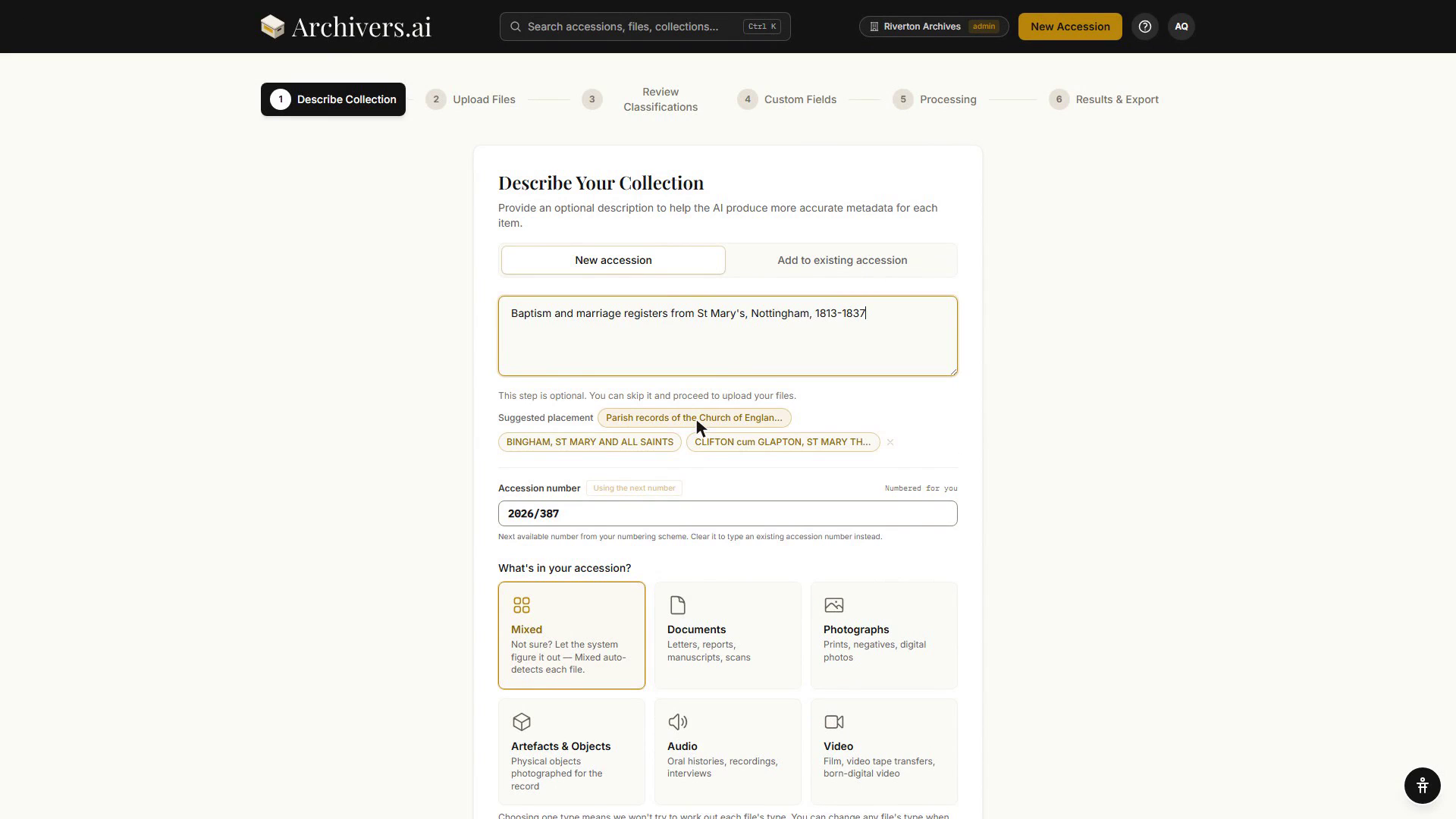
When you describe a new accession, Archivers.ai offers the collections it looks most likely to belong to as suggested placements — click one to file it there, or ignore them.
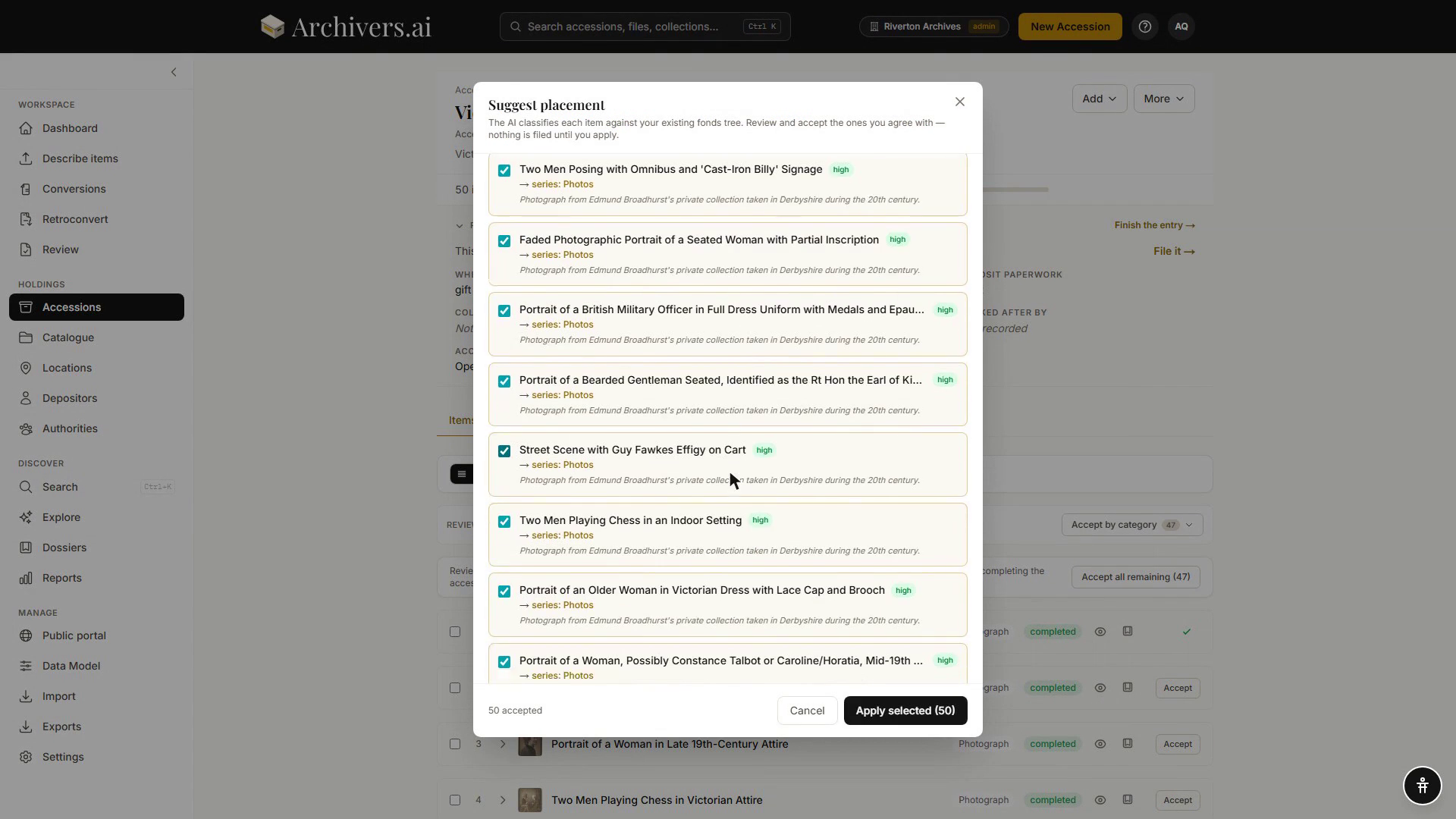
For material already inside an accession, Suggest placement classifies each item against your existing tree and proposes a destination per item. Nothing moves until you apply the ones you agree with.
Reassigning
Same flow as assigning. The dropdown always reflects the current location; pick a new one to move.
Reassignment doesn't lose any item-level metadata — only the accession's position in the hierarchy changes.
What if I haven't built a hierarchy yet?
Either:
- Skip it. Leave accessions Unassigned. Search still works; exports still work. The trade-off is that hierarchical exports (EAD3 finding aids) show your accessions at the top level with no structure around them.
- Import one. If you already have an arrangement in a spreadsheet, bring it in — see Importing a structure.
Why unassigned accessions still appear in exports
Unassigned accessions export with parent: null in JSON / CSV exports and as top-level <archdesc> children in EAD3. They're not invisible — they're just unplaced. That's fine for early-stage archives; less fine for finished finding aids.