Importing a Structure
Bring an existing catalogue hierarchy in from a spreadsheet or delimited text file. Useful when:
- You're migrating from ArchivesSpace, AtoM, or another catalogue
- You have a spreadsheet of finding-aid headings ready to go
- You want to set up the skeleton structure quickly, then assign accessions later
Available on Starter and above.
CSV import
Required columns
| Column | Required | What it is |
|---|---|---|
fond_title | ✓ | The top-level fond name |
subfond_title | Sub-fond name (optional) | |
series_title | Series name | |
subseries_title | Sub-series name | |
reference_code | Your institutional ref | |
date_from | ISO date (YYYY-MM-DD or just YYYY) | |
date_to | ISO date | |
description | Narrative description | |
biog_hist | Biographical / administrative history (fond level) |
One row per leaf node. Empty columns inherit from the parent. You don't have to match these names exactly — the Map step reads whatever headings your file uses and lets you say what each one becomes.
Example
fond_title,series_title,reference_code,date_from,date_to,description
Thornton Family Papers,,GB-LN-THO,1856,1948,Records of the Thornton family...
Thornton Family Papers,Correspondence,GB-LN-THO/1,1856,1948,Letters in and out
Thornton Family Papers,Photographs,GB-LN-THO/2,1890,1940,Studio portraits and snapshots
Thornton Family Papers,Diaries,GB-LN-THO/3,1872,1920,Personal diaries of Emily and Mary
Running the import
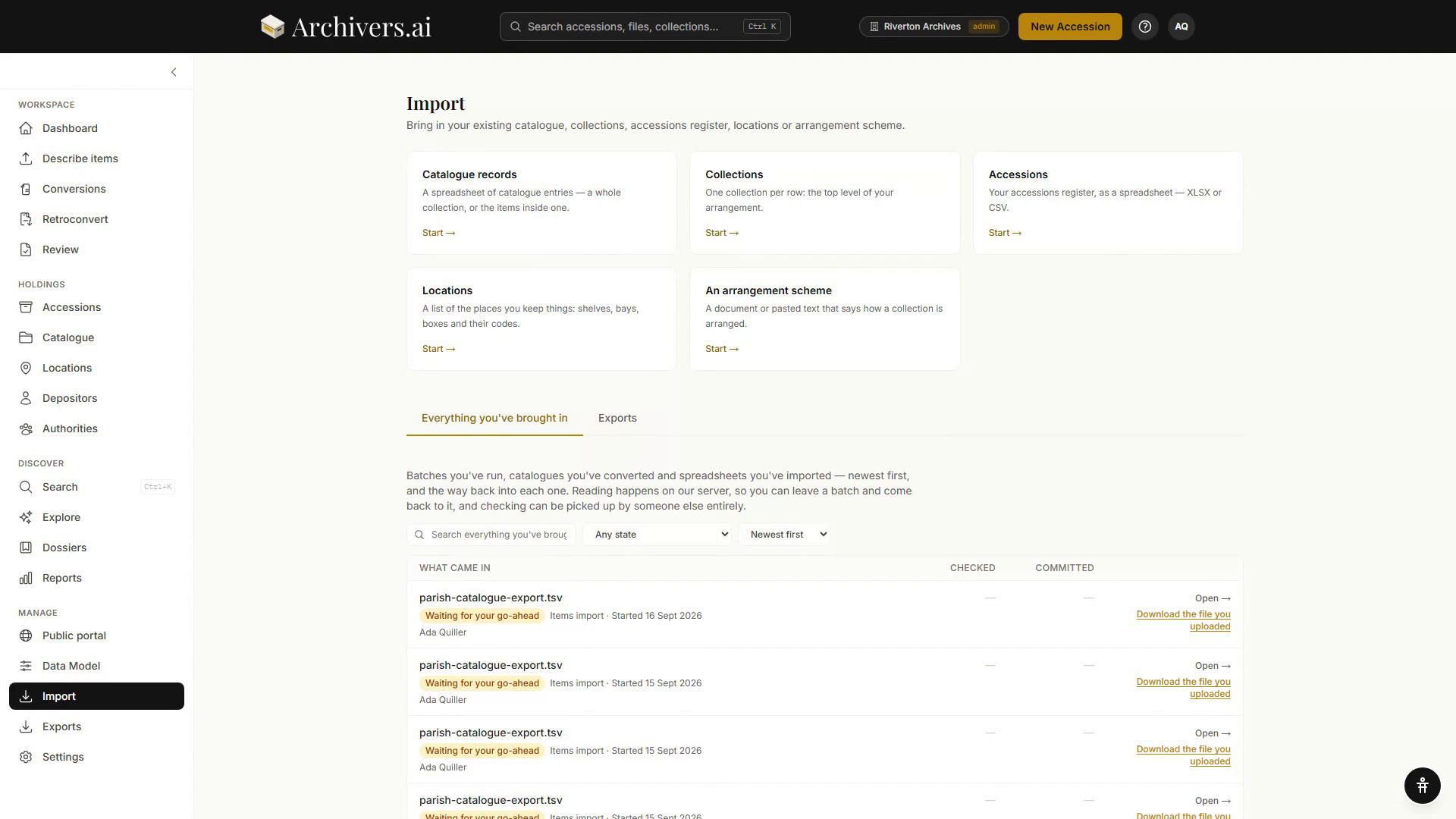
- Import in the sidebar. The Import hub offers cards for Catalogue records, Collections, Accessions, Locations and An arrangement scheme. Pick Collections for the top level of your arrangement, or Catalogue records for a whole collection and the items inside it.
- The wizard runs in seven steps — Choose · Upload · Map · Check · Preview · Bring in · Done.
- Upload your file and say under Put these under where the rows should land. A spreadsheet (
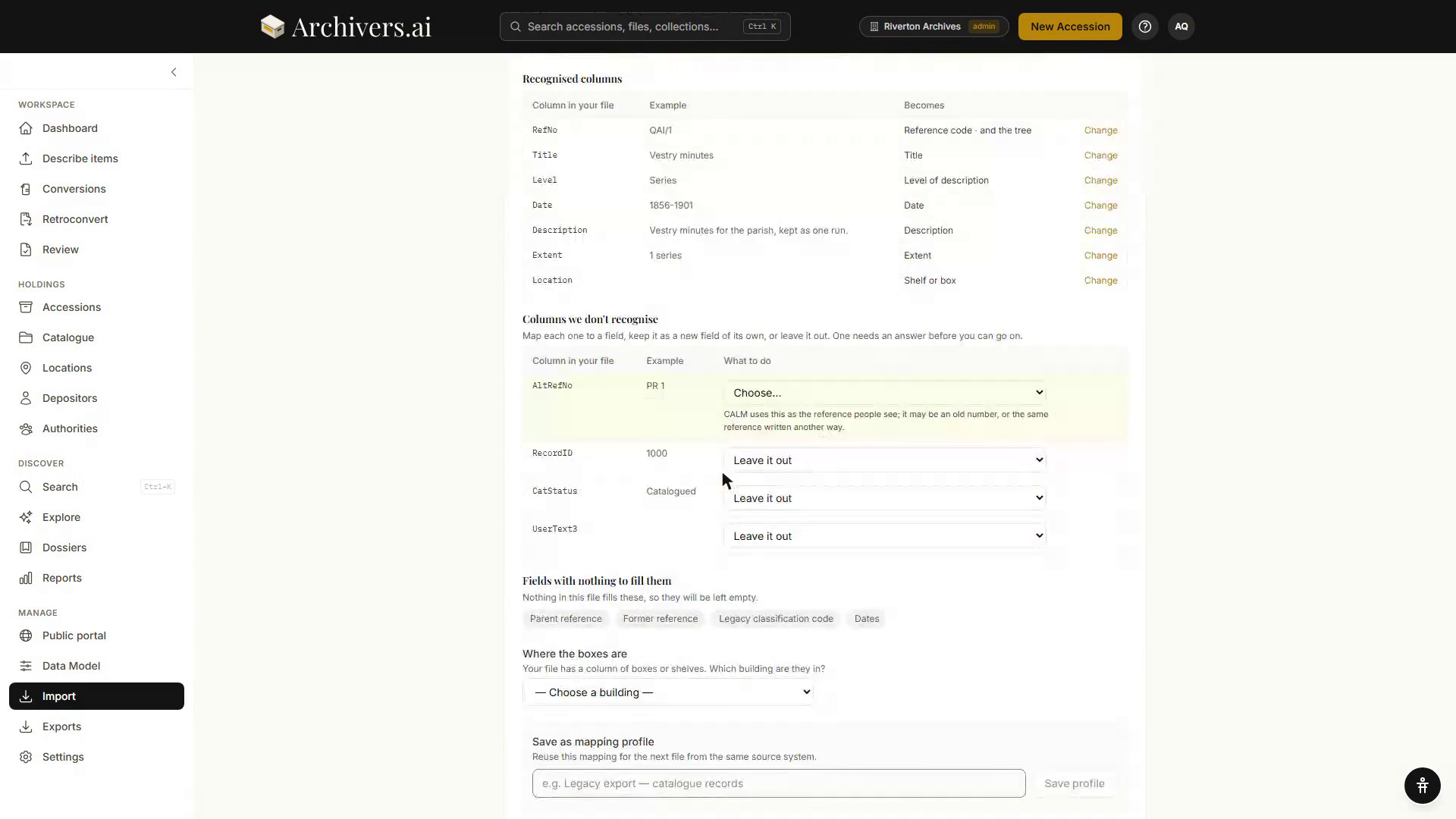
.xlsx) or a delimited text file (.csv,.tsv,.txt) both work; CALM's tab-delimited export goes in as it is. - Map. The platform reads the layout and lists the columns it recognised and what each becomes. Anything it doesn't recognise you map to a field, keep as a new field of its own, or leave out. You can save the mapping as a profile to reuse on the next file from the same system.
- Check reports anything that needs an answer before it can go on.
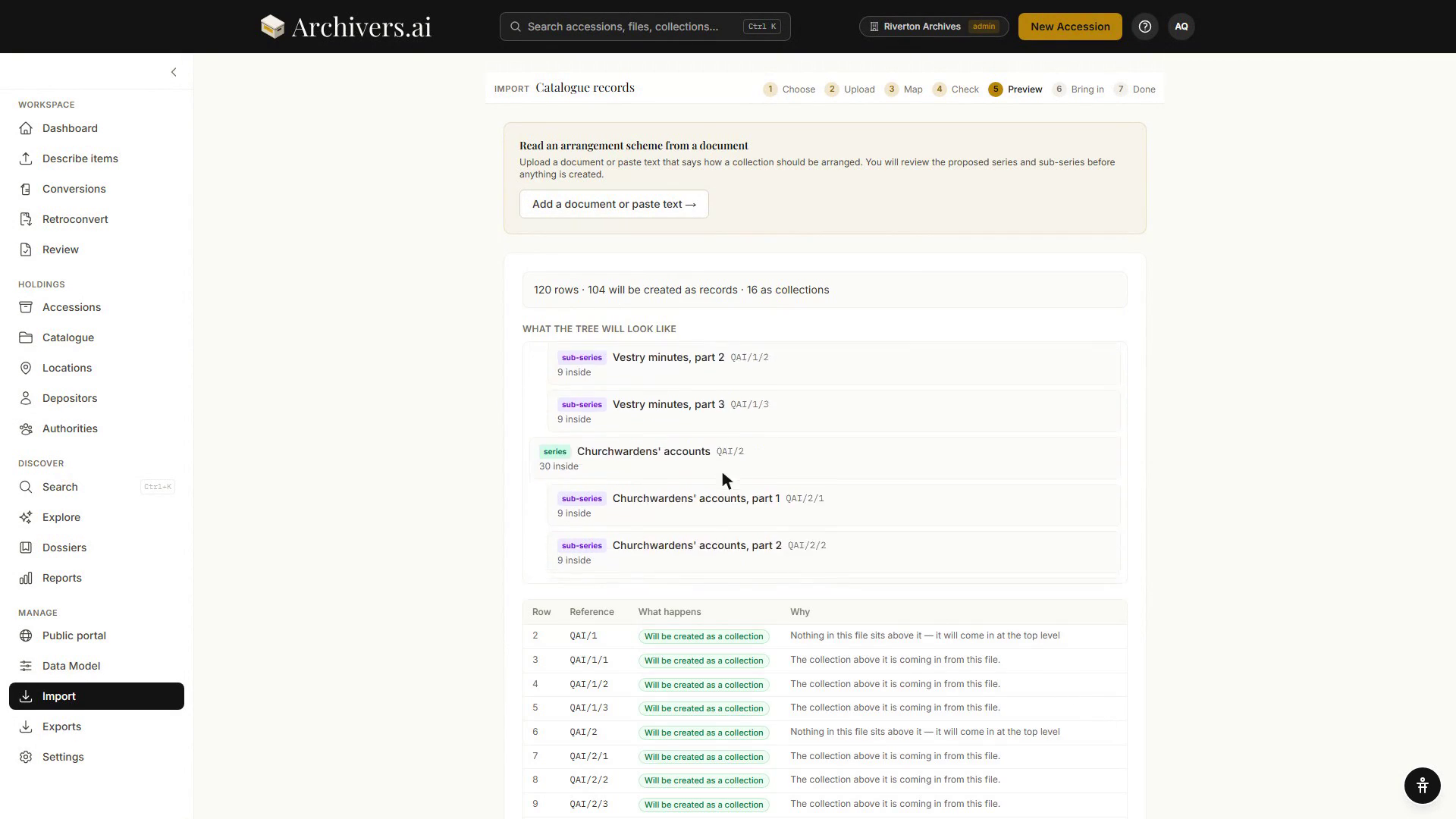
- Preview shows the row and record counts, the tree the import will build with its level labels and reference codes, and a row-by-row account of what will happen.
- Bring in commits it.
The structure appears in the Catalogue immediately. Accessions remain unassigned until you place them.
Common errors
| Error | Fix |
|---|---|
| Required column missing | The CSV needs fond_title at minimum. |
| Date format invalid | Use ISO YYYY-MM-DD or YYYY. 1/3/1988 won't parse. |
| Duplicate fond title | Two fond-level rows with the same title clash. Use different reference_code values, or merge in the source. |
If it went wrong
An import can be taken back out in one action. Put this import back sits on the wizard's Done screen, and on the import's row in the list of past imports. Everything the import created goes to Deleted, where you can bring it back for 28 days; anything you have added or changed since stays exactly as it is.
After import
- Assign accessions to the imported structure — see Assigning accessions.
- Review descriptions — open a collection in the Catalogue and use AI draft on its ISAD(G) description panel to draft the fields from what is filed beneath it. See AI Analyse ISAD.
- Re-export to verify round-tripping — Exports in the sidebar.