Searching Your Archive
Archivers.ai's search runs across everything — accession names and descriptions, every file's metadata, the full text of every OCR'd document, every word of every transcript (audio and video), and your fonds hierarchy. You can search for specific phrases within transcripts just as you would for document text.
Where to search from
Two entry points:
- Search in the left sidebar (or Ctrl+K / Cmd+K from anywhere)
- The Search archive quick action on the Dashboard
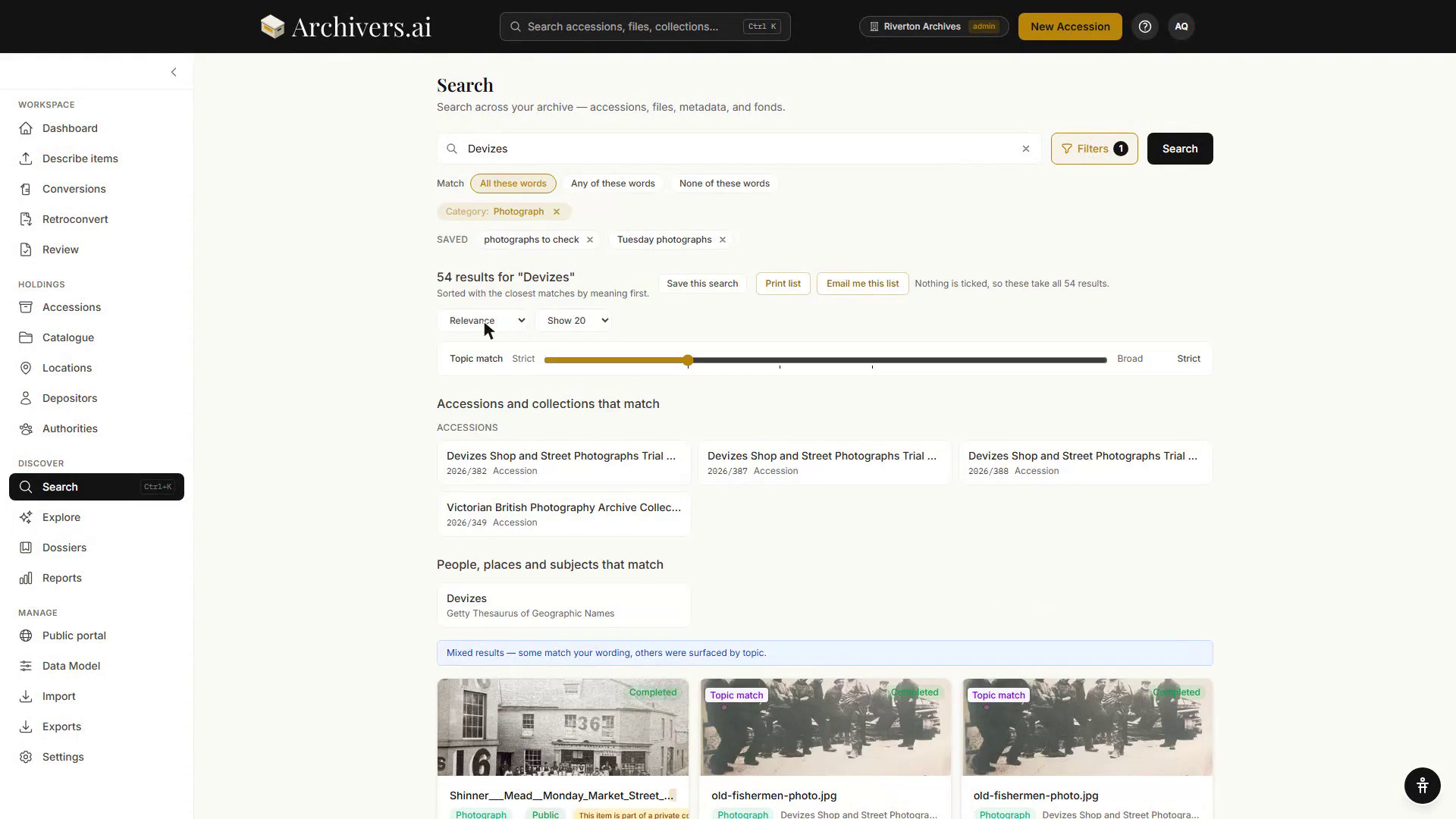
The top banner says it succinctly: "Search across your archive — accessions, files, metadata, and fonds."
Match chips
Under the search box is a Match row with three chips:
| Chip | What it does |
|---|---|
| All these words | Every word has to appear (the default) |
| Any of these words | At least one word has to appear |
| None of these words | Opens a Leave out box — anything containing those words is dropped |
The chips write ordinary search syntax into the query, so a link you share or a search you saved opens with the right chip lit.
Query syntax
You can still type the syntax directly:
| Pattern | What it does |
|---|---|
derby county | Match either word, ranked by relevance |
"derby county" | Exact phrase |
flag -plastic | Match flag, exclude results containing plastic |
programme OR fixture | Either word |
Smith 1956 | Both terms (implicit AND) |
The platform uses Postgres websearch_to_tsquery under the hood — broadly intuitive but stricter than Google. If you're getting no results, try:
- Drop the quotes — phrase search matches the words in that order with no gaps
- Use OR for alternative spellings
- Use shorter terms —
phonographis more likely to match thanphonograph recording
Filters
Click Filters to open the Filter results panel:
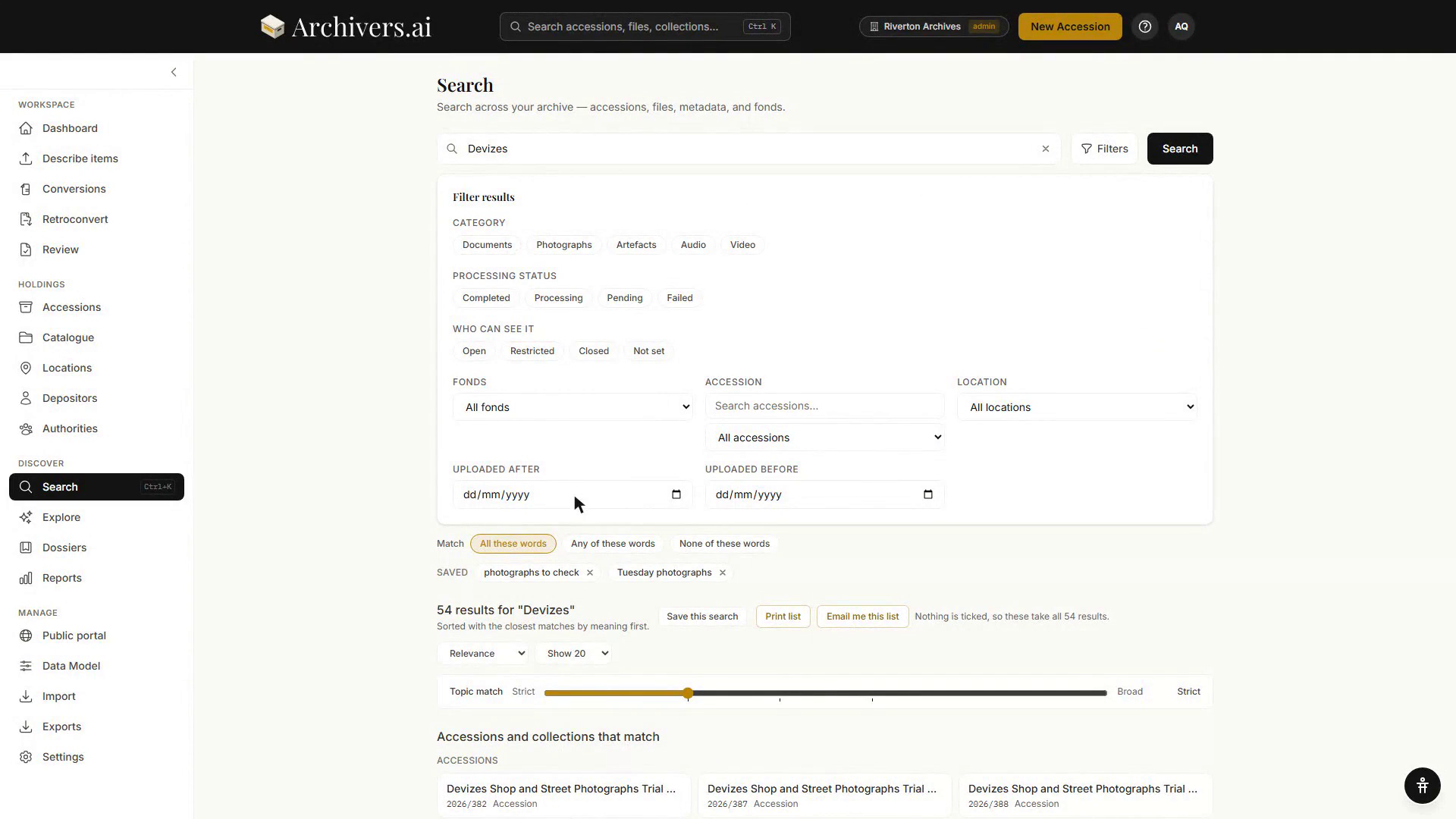
| Filter | What it scopes |
|---|---|
| Category | Documents / Photographs / Artefacts / Audio / Video |
| Who can see it | Open / Restricted / Closed / Not set — the item's access condition |
| Processing status | Completed / Processing / Pending / Failed |
| Fonds | Restrict to one fond (or unassigned) |
| Accession | Restrict to one accession |
| Location | Restrict to one storage location |
| Uploaded After | Date floor |
| Uploaded Before | Date ceiling |
Category, Processing status and Who can see it are chip groups — tick as many as you like. Filters are combinable: "all photographs in the Thornton Family Papers fond, uploaded after January, that match 'wedding'" is one query.
There is no Apply button — the search re-runs as you change a filter. Clear all empties the panel, and each active filter also appears as a chip above the results with an × to remove it.
Searching by meaning
If a workspace admin has turned on search by meaning, a search for canal can also surface waterway and towpath. When it is off, the page says so under the result count and names where it is switched on (Settings → Organisation); if it is on but the meaning side isn't answering, the page says that too.
With it on, a Topic match slider appears above the results, from Strict to Broad. Strict returns only very close matches; broad pulls in related topics. A note under the result count — "Sorted with the closest matches by meaning first" — tells you when meaning decided the order rather than the set.
Cards carry a Best match badge when your wording and the topic matched, and a Topic match badge when only the topic did. When every result came back by topic, the page says so once at the top instead of badging each card.
Accessions, collections and authorities
Below the query, and above the file results, two further groups appear when they have anything to show:
- Accessions and collections that match — accessions and catalogue nodes whose own descriptions match, as plain links.
- People, places and subjects that match — authority records matching the query, linking into Authorities.
Neither group has checkboxes: they are ways in, not results to act on in bulk.
Reading results
Each result card shows:
- Category icon and badge (Document / Audio / Video / Artefact)
- Status badge — Completed / Processing / Failed
- Reference code (if the item has been assigned to a fonds) — shown at the top of the card in reference-first mode, or muted below the filename in name-first mode
- Filename
- Parent accession (clickable, scopes search to that accession)
- Key fields — Date, Title, Creator, Condition (varies by category)
- Authority pills — linked subjects, people, places, organisations. Pills with vocab badges (LCSH, AAT, FAST, TGN, VIAF) are authoritative; pills without are local terms.
- Passage context (when available) — a marked excerpt from the best-matching passage in the item, with the page number (for documents) or timestamp (for audio/video). Gives you a preview of exactly where and why the item matches your search.
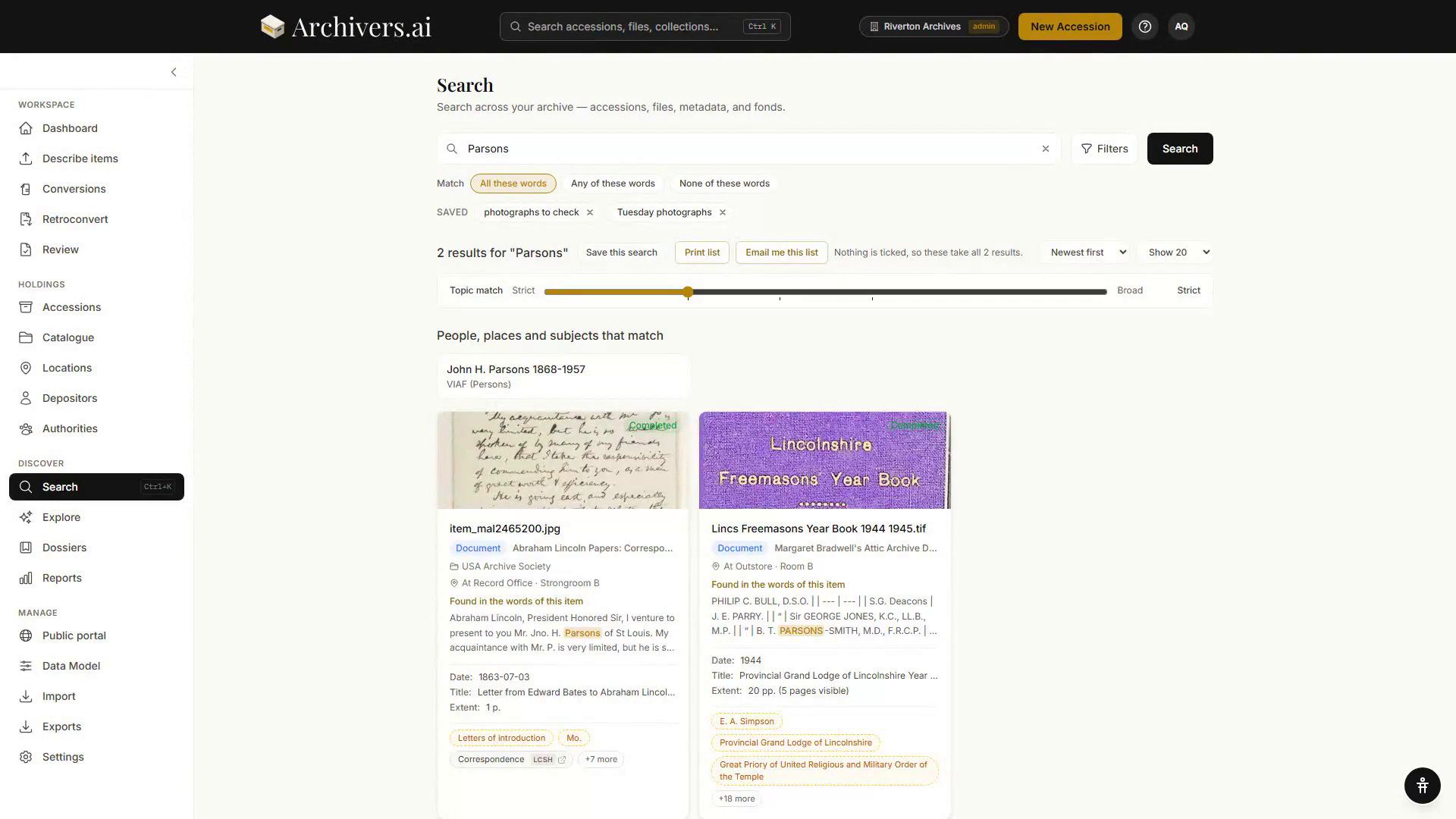
Hover a pill for the full URI and source. The i icon opens the authority's details; the external-link icon opens the source record on the issuing body's own site. Click a passage locator to open the item at that page or timestamp.
Sorting and pagination
Sorting: the dropdown above the results offers Newest first, Oldest first, Name (A-Z), Name (Z-A), Largest first, Smallest first and Relevance.
Alongside the result count you'll find Save this search, Print list, and Email me this list — all three act on whatever you've ticked, or on the whole result set if nothing is ticked. Saved searches appear as chips under the query box.
Results per page: Use the Show 20 / 50 / 100 dropdown to adjust how many results you see per page. Larger pages show more items at once; smaller pages load faster.
Tips
- Start broad, then filter. A keyword search returns more than you need; the filter panel narrows it.
- Read the authority pills. They're the difference between "items that mention Derby County" and "items authoritatively tagged as Derby County FC". A pill with a vocab badge is the second kind.
- Search inside an accession. Open an accession and the search bar at the top is scoped to that accession only — useful for big batches.
- Show the map. When results carry resolved places, a Show map button appears beside the sort dropdown. See Using the map.
See also
- Selecting and adding — bulk operations on results
- Using the map — see where your items are geographically
- Authorities — the linked-data layer that powers the pills