Creating Your Fonds Structure
The end-to-end walkthrough for building out an archival hierarchy. Available on Starter and above.
Plan first, click second
Before clicking + Collection, sketch out:
- Who created the records you hold? Each distinct creator becomes a fond.
- Are there major organisational divisions? Create sub-fonds for departments or major units.
- Are there topic areas or administrative groupings above series? Create sections (e.g. civil vs. ecclesiastical records in parish collections).
- What kinds of records did they create? Each record series becomes a series within the relevant parent.
- Do any series need fine-grained sub-division? Use sub-series or sub-sub-series as needed.
Five minutes on paper saves hours of rearranging later. Remember: you don't have to use every level.
The Catalogue page
Catalogue in the sidebar, under HOLDINGS, opens the catalogue workspace. The structure tree sits in a resizable rail on the left; the collection you select opens beside it on the right.
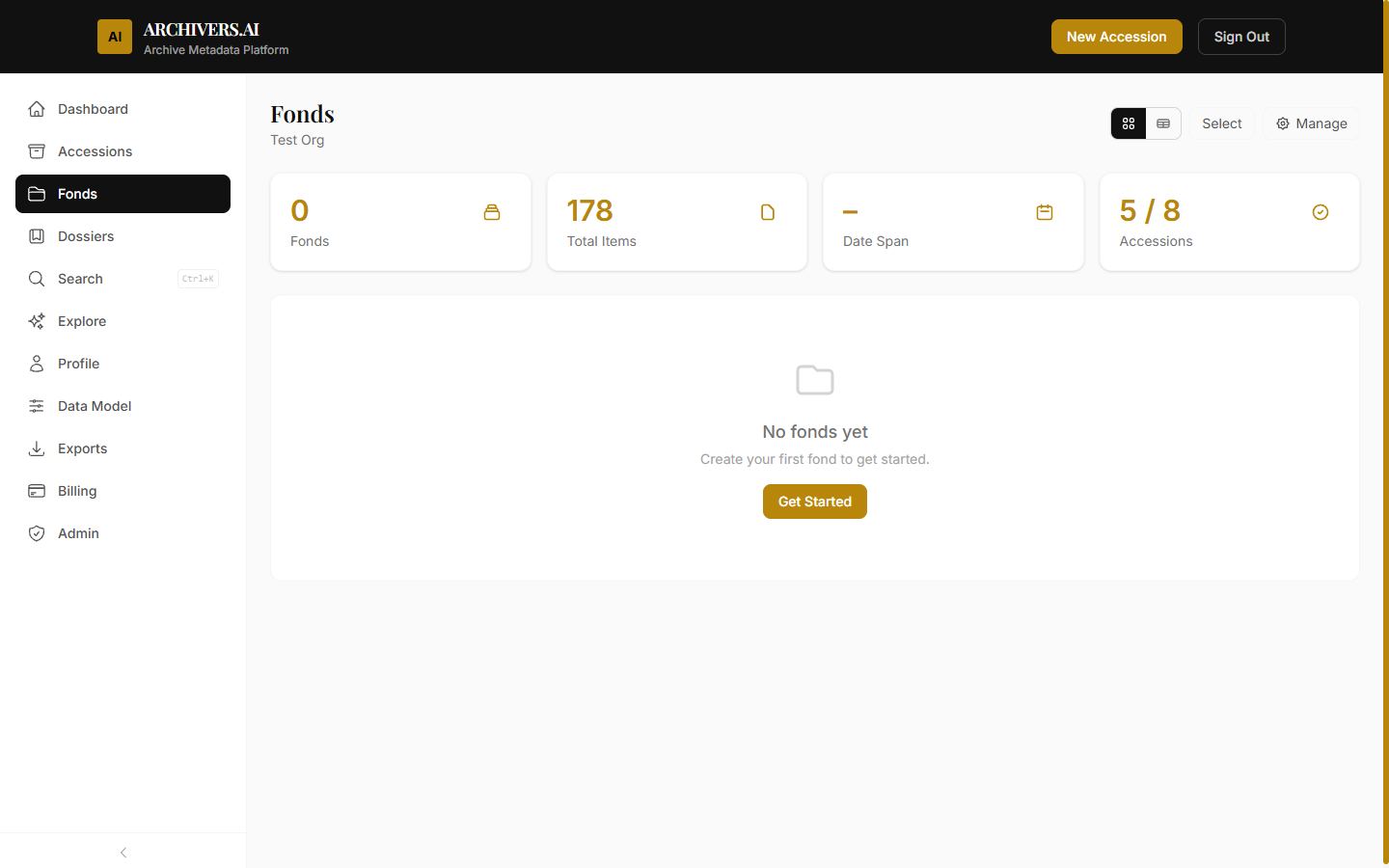
A workspace with nothing in its catalogue yet sees Nothing here yet, with Create a collection and Import a catalogue to start from.
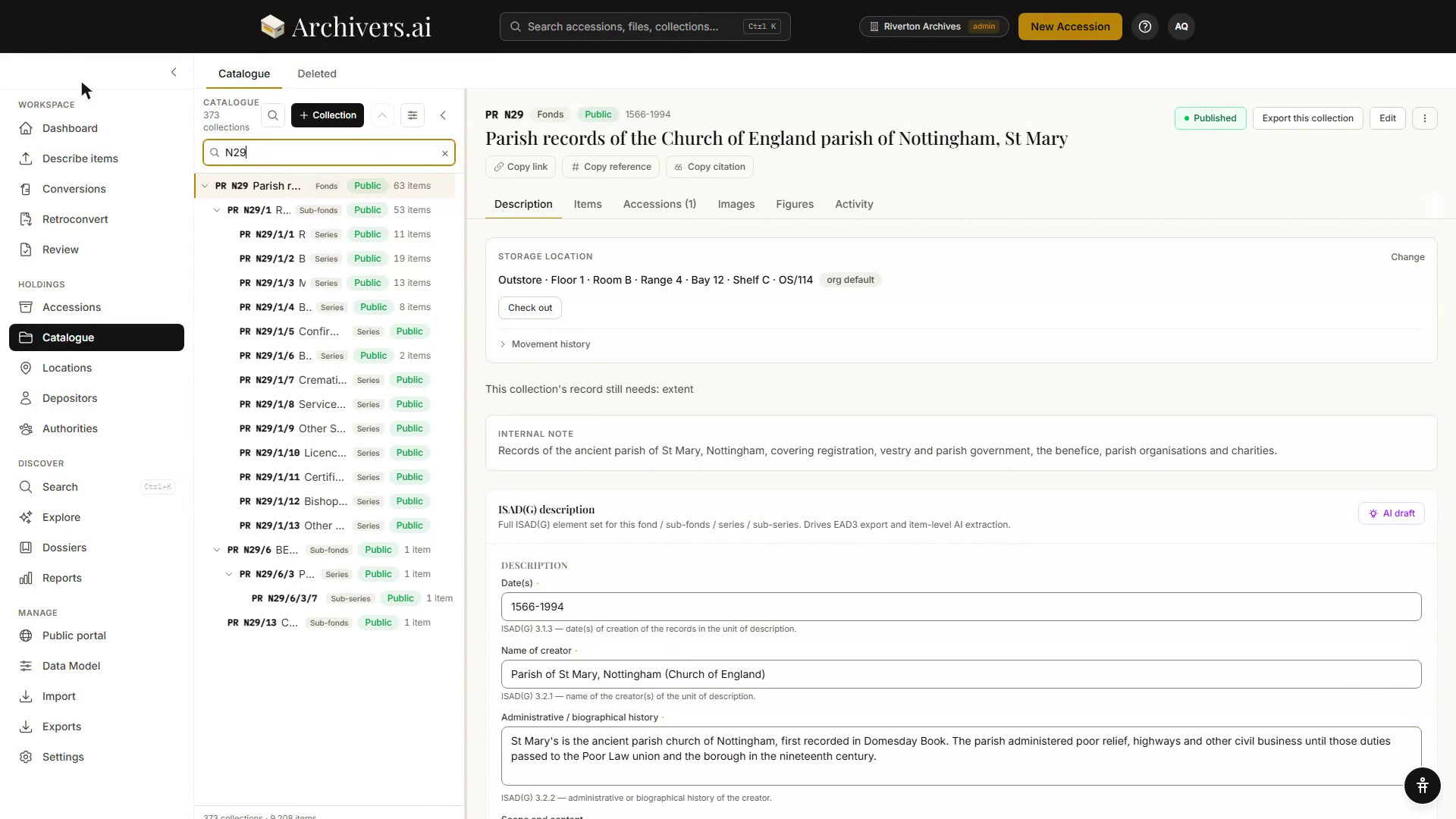
At the top of the tree rail you'll find:
- + Collection — create a new top-level collection
- Search the catalogue (⌘K) — jump straight to a reference or title
- Collapse all — close every open collection
- Display options (⚙ icon):
- Show first — reference code or title, whichever you want leading each row. It's your choice on this device, over the workspace default set in Settings.
- Hide empty levels — fold any levels with no accessions or items filed to them
The page also carries a Deleted tab beside Catalogue, where a deleted collection can be recovered.
Creating a collection
- Click + Collection at the top of the tree (or Create a collection on the empty state).
- Fill in:
- Title (required) — the name of the creating person, family, or organisation
- Reference code (optional) — your institutional identifier
- Date span (optional) — the dates of creation
- Scope and content — narrative description
- Biographical / administrative history — about the creator
- Save. The collection appears in the tree.
Archivers.ai applies ISAD(G) and DACS defaults to the fond schema — you can adjust them in Settings → Data Model under the Collection category.
Adding sub-levels
Select a collection in the tree and its record opens on the right: its ISAD(G) description, the items filed at that level, the accessions filed into it, and its activity.
Every row in the tree carries a ⋯ menu. Add child collection adds a sub-level beneath it. Nesting follows one rule rather than a table of permitted pairs: a collection may sit under any collection of a higher level, and sub-series and sub-sub-series may also nest inside themselves. So you can skip any level you don't need — Fond → Series → Sub-series is valid, and so is Fond → Section → Series.
The levels, highest first: Fonds · Sub-fonds · Section · Sub-section · Series · Sub-series · Sub-sub-series, plus Folder — a single level of children used by simple-list collections (see below), holding items and nothing else.
Each level has its own description fields, inherited defaults from the parent, and a date span computed from its children.
How a collection is arranged
Settings… in a collection's ⋯ menu asks how it is arranged:
- As an archive — sections, series and sub-series, with items filed inside them. References follow the tree.
- As a simple list — items sit in the collection itself, in folders if you like. No sections or series.
The same dialog holds whether two things in the collection may share a reference, the Former reference prefix, and whether there is a paper list in the searchroom.
Editing ISAD(G) fields
With a collection selected, its record on the right carries the ISAD(G) description panel — the full element set for that level. Edit the fields in place and click Save changes; AI draft in the corner of the panel offers to draft them from what is filed beneath (see AI Analyse ISAD).
Edit in the ⋯ menu opens a smaller dialog for the things that are not description: Title, Level, Reference code, Dates, Former reference and an Internal note. Changing the reference code after the collection exists is fine — useful when institutional identifiers arrive late or a numbering scheme is applied retroactively.
Rearranging
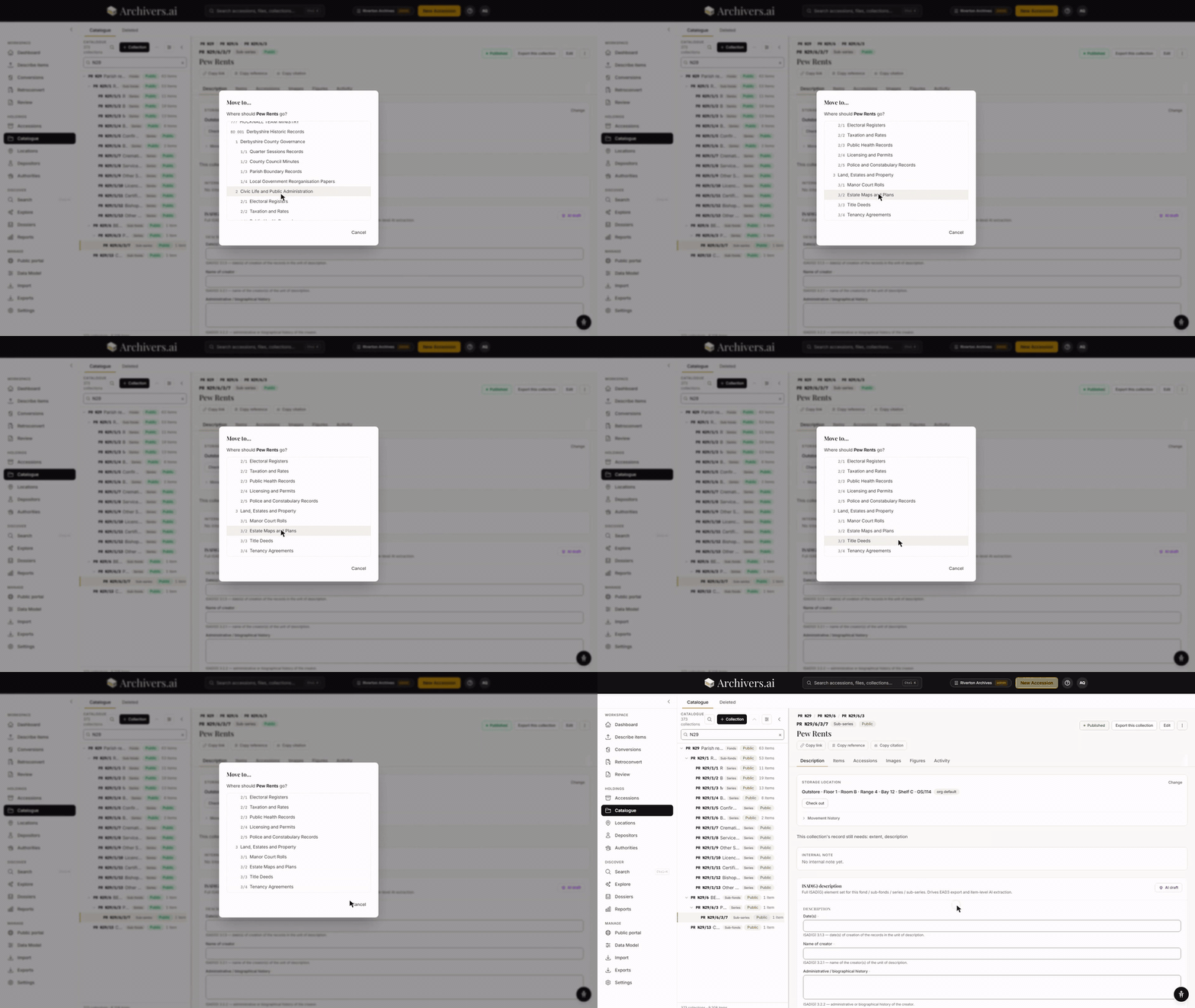
Reparenting is done from a collection's ⋯ menu. Move to… opens the destination tree so you can pick a new parent in one step; the whole sub-tree goes with it. The same menu carries Renumber…, Move up, Move down, Add to dossier, Export…, Import into this collection… and Delete.
Deleting a collection takes everything filed under it with it — the dialog says how many levels and records that is before you confirm, and the button reads Move to Deleted. Nothing is destroyed: it all goes to the Deleted tab beside Catalogue, where it can be brought back.
Best practices
- Mirror the creator, not the topic. Thornton Family Papers is a fond; World War One materials is a dossier.
- Keep the hierarchy shallow. Three levels is usually enough. Five-level hierarchies become hard to navigate.
- Reference codes are your friend. Set them once at fond level; sub-fonds and series inherit a prefix automatically.
- Use the description field generously at the top. Researchers read fond-level descriptions first; that's where to put context.
Next
- Assigning accessions — once the structure exists, hook your accessions into it
- Importing a structure — bring in an existing hierarchy from CSV or EAD3