How AI Processing Works
The end-to-end view of what happens between file uploaded and catalogue record ready to export. Useful to understand both the capabilities and the costs.
The pipeline
Every file goes through some subset of these stages, depending on its type:
- Ingest — MIME-type detection, a SHA-256 checksum of the file, and a duplicate check against the rest of the archive that raises a Possible duplicate badge rather than silently skipping the file.
- Extraction — vision analysis for photographs, artefacts, and documents. OCR for documents and transcription for audio and video are opt-in (see below) and available from Starter upwards.
- Classification — assign a category (Document, Photograph, Artefact, Audio, Video) and populate the metadata schema for that category. On every plan, Community included.
- Authority resolution — resolve extracted subjects, people, places, and organisations against published vocabularies. Each entity becomes a pill linked to its source-of-record URI. Available from Starter upwards.
- Optional collection-level Analysis — when you ask for it on the Analysis tab, the platform produces a top-down narrative summary, themes, and a proposed arrangement. Professional and Institution plans.
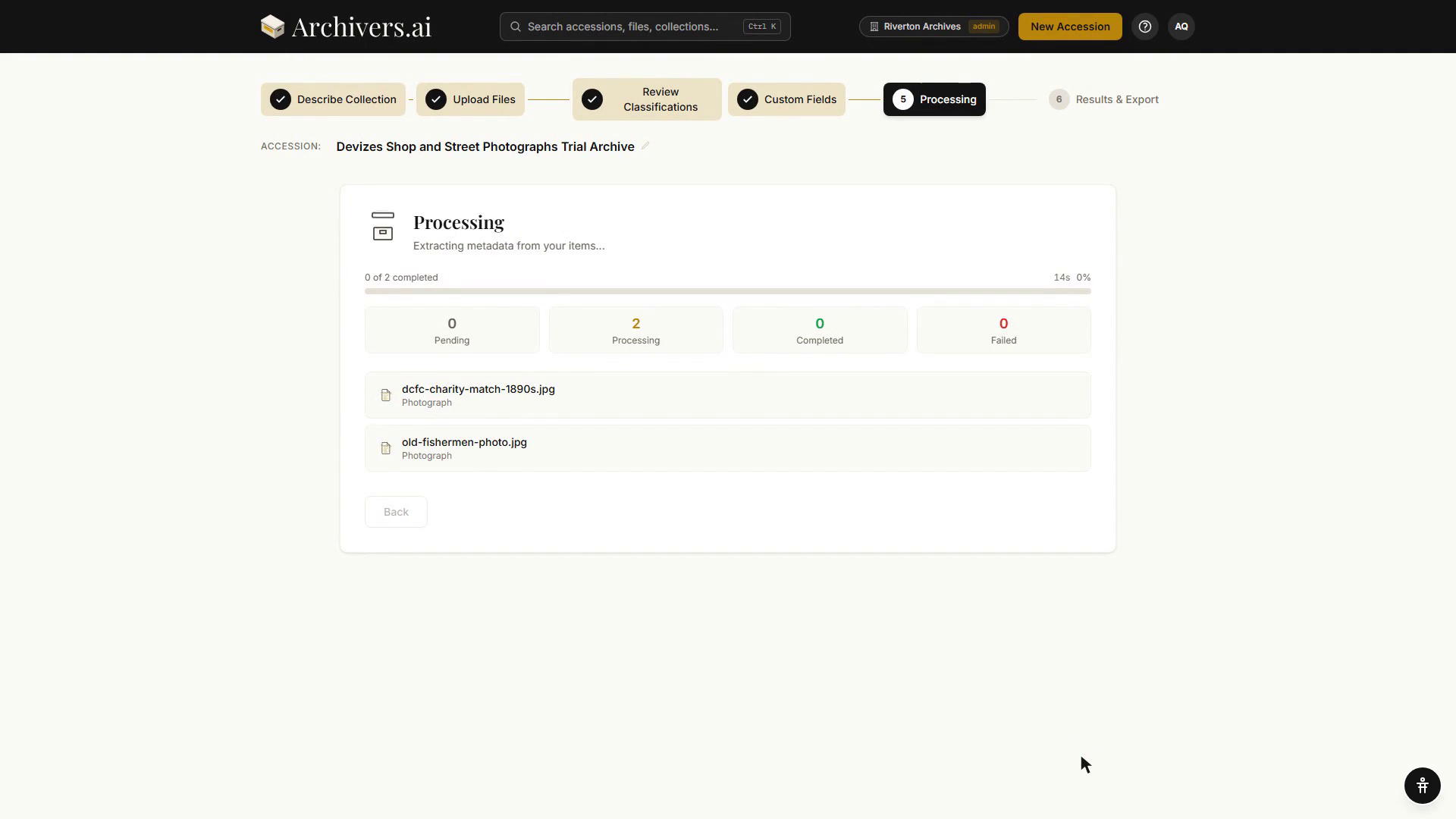
You see the result in the Items, Analysis, and Authorities tabs on the accession page.
What each stage does
Different stages of processing use different, purpose-chosen models; Archivers is not tied to a single provider, and the provider can change without any change to how you work:
- OCR. Opt-in only. Documents are analysed with vision first; you then review the transcribability score and choose whether to run OCR.
- Vision / object description. A vision model describes photographs and artefacts and extracts document metadata when OCR is not run.
- Handwritten content. A first pass produces a confidence score; if confidence is low, the file is flagged so you can opt into a deeper pass.
- Transcription. Speech-to-text for audio and video, with timed segments. Opt-in after reviewing the transcribability score.
- Authority resolution. Live look-ups against LCSH, FAST, Getty AAT, Getty TGN, VIAF, GeoNames, and Wikidata, with model-based disambiguation for ambiguous matches.
- Research & Explore. Institution plans use a larger research model than Starter and Professional.
OCR and transcription are opt-in. Documents and media items receive a transcribability score (0-10) during initial processing. 7 and above is the good band, 4-6 the middling one, below 4 the poor one — and a poor score is a prediction, not a block. Click Run OCR or Transcribe on any item to extract the full text.
Transcribability scoring
Every document and media file is assessed for OCR or transcription suitability during initial processing, before any text extraction runs. You'll see:
- Score (0-10). Based on image quality, text density, print clarity (for documents) or audio quality and speech clarity (for media).
- Verdict line. For a document: High OCR confidence (7+), Mixed-quality OCR expected (4-6) or Low OCR confidence (below 4). For audio and video: Excellent quality, Challenging audio or Unintelligible / non-speech.
- Limiting factors. Why the score is what it is — e.g. "handwritten", "low resolution", "background noise".
After reviewing the score, click Run OCR (documents) or Transcribe (audio/video) to extract the text. A high-confidence item typically produces a clean transcript; a middling one runs but expect errors on proper nouns, dates, or degraded passages. A low-confidence item can still be run — the button forces past the prediction rather than refusing.
Instant vs. batch
There are two processing modes:
- Instant. Each item is processed as it's uploaded. You see results within seconds-to-minutes of each file landing. Cap on the Community plan: 2 instant accessions per month, and 5 accessions in total before everything goes to the queue.
- Queued. Start processing — you can close this window hands the accession to a queue that drains itself and resumes after an interruption. Process overnight hands it to the provider's batch engine instead — slower, and offered as a choice or on a refusal.
You don't have to pick — the platform routes Community accounts to the queue once they've used their instant runs, and paid plans have unlimited instant.
What processing costs
Processing spends credits from the workspace's monthly allowance:
| File type | Credits |
|---|---|
| Image / photograph / artefact | 1 per item |
| Document | 1 per page |
| Video | 1 per started minute |
| Audio | 1 per started five minutes |
Every item costs at least 1, and an unknown page count or duration charges that minimum. Settings → Billing shows where this month's credits went, per person and per kind of work.
Confidence and flagging
For every metadata value the AI assigns, it emits a self-assessed confidence score (high / medium / low). Low-confidence values mark the item as Flagged in the review screen. The model also flags items where it bailed out early — un-readable scans, audio with too much noise, or images that don't seem to contain the subject implied by the filename.
Flagged records collect under Marked for attention on the Review desk, so you can deal with the awkward cases first.
What's not in scope
- Archivers.ai does not retrain its models on your data.
- No customer content leaves Archivers.ai and its model providers for any other purpose.
- We do not publish your files or metadata anywhere — the Authorities page on the marketing site shows examples from public collections, not customer data.
Want more control?
- Profile → AI & Defaults lets you set an Output language, Institutional context, Writing style, and optionally Reparative description that's injected into every AI prompt. See Your profile.
- Settings → Data Model controls which fields the AI populates per category and which vocabularies it's allowed to resolve against. See Data Model.
- Settings → Exports → Mappings controls how AI-populated fields appear in each export format.