What are Conversions?
Conversions turn information locked in paper registers, ledgers, card indexes, and typed lists into individual, catalogued records in your archive — just like retroconversion, but with templates you define yourself.
Instead of manually retyping entries one by one, you:
- Set up a template — describe what a single entry looks like on your page (your own fields, in your own order, with your own names)
- Upload the pages — a PDF, or a photo of each page
- Review the results — every entry becomes its own record, linked back to its source page
- Commit the records into your catalogue
The system extracts each entry as a separate record, linked back to its source page, so you can always verify it against the original.
Conversions vs. Retroconversion
Both turn paper into records. The difference:
- Retroconversion reads a single format you choose once: a typed PDF finding aid, always read the same way.
- Conversions let you define your own template, then run many batches through it without repeating the setup.
Use conversions for:
- Registers and ledgers (parish records, business day books, school admissions)
- Card indexes
- Handwritten or typed lists in your own format
- Anything with a consistent structure you'll run through more than once
Use retroconversion for:
- A single PDF catalogue, once
- Typed finding aids
- When you don't need a custom template
How it works
When you start a conversion project, you:
- Set up a conversion — describe the material, check how a sample page reads, say how exact the copy should be, and agree the fields
- Save it — the settings are kept and versioned. Every batch runs on the newest version; batches you've already run keep the version they ran with
- Upload and run — submit a new PDF or set of page photos; the system reads through them and extracts entries into records
- Review the results — examine each record against the source page and accept what's correct; flagged entries are marked for attention
- Commit — accepted records enter your catalogue (a separate step from reviewing — you choose when, unless you told the batch to put them in as they were read)
- Export — download the committed records as a plain spreadsheet, or in CALM's or Spectrum's layout
Then, whenever you have more of the same material, you just upload new pages and run another batch. No setup; no re-learning.
Key features
Page linkage. Every committed record carries a link to the page it came from, plus the entry's position on that page. You can always trace it back.
Split-screen review. Each extracted entry is shown side-by-side with the source page during review — you see the evidence, not just the result. After a record is committed, clicking the source name opens the original document in a new tab, always a reference back to where the entry came from.
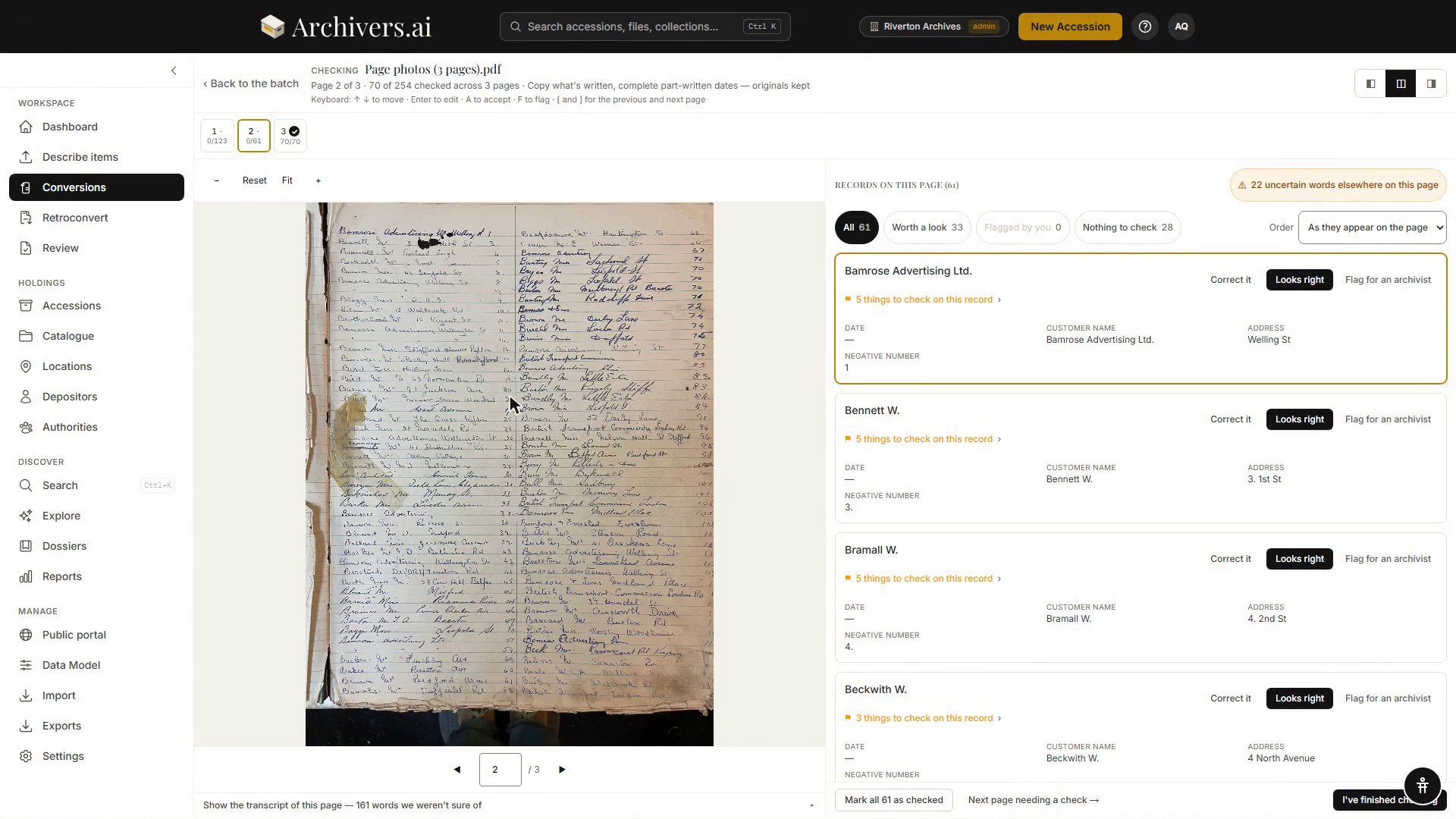
Honesty about uncertainty. The system marks fields it's uncertain about — and crucially, it says WHY (photograph edge cut off, handwriting too unclear, word confidence low). It leaves blank fields blank rather than inventing data.
Page-level insights. When a page looks unusual (more entries than expected, repeated data, unclear column), the system notes it at the top so you can decide whether to keep or re-photograph.
Reusable templates. Set up the structure once; run as many batches as you need without re-agreeing each time. The card for each conversion shows how many times its settings have been saved.
Multiple record modes. After you review and commit, you can export one CSV row per entry (create), or explode repeatable fields (one row per value, for linked records), or enrich existing records by matching identifier numbers.
If conversions aren't available yet
Conversions is a premium feature and may not be available on your plan yet. If you don't see Conversions in the main menu, contact support or check whether your plan includes this feature in Settings → Usage and Plan.
Next steps
- Setting up a template — the walkthrough
- Running a batch — uploading pages and monitoring progress
- Reviewing conversions — the review process