Publishing, Scheduling, and Unpublishing
Nothing is visible on the Public Portal until you publish it. You can publish an individual item, a whole accession, a fonds (with its descendants), or a dossier — each independently.
Publishing to the portal is open to the workspace's archivist roles — Admin, Member and Reviewer. Volunteers cannot publish. Only an admin can force a publish past blockers.
Publishing
Click Publish to Portal on the record you want to make public (accession, fonds, item, or dossier page). A dialog opens with a pre-flight summary:
- Total files and how many are publishable
- Unreviewed — items that haven't been through review yet Work them off at the Review desk — acceptance is the gate to publication.
- May contain personal information and High sensitivity — items the AI has flagged for human attention
- Missing rights — files with no rights information
Where a warning has items behind it, Show the items opens the list, and each one links to its record so you can answer the question the warning asks.
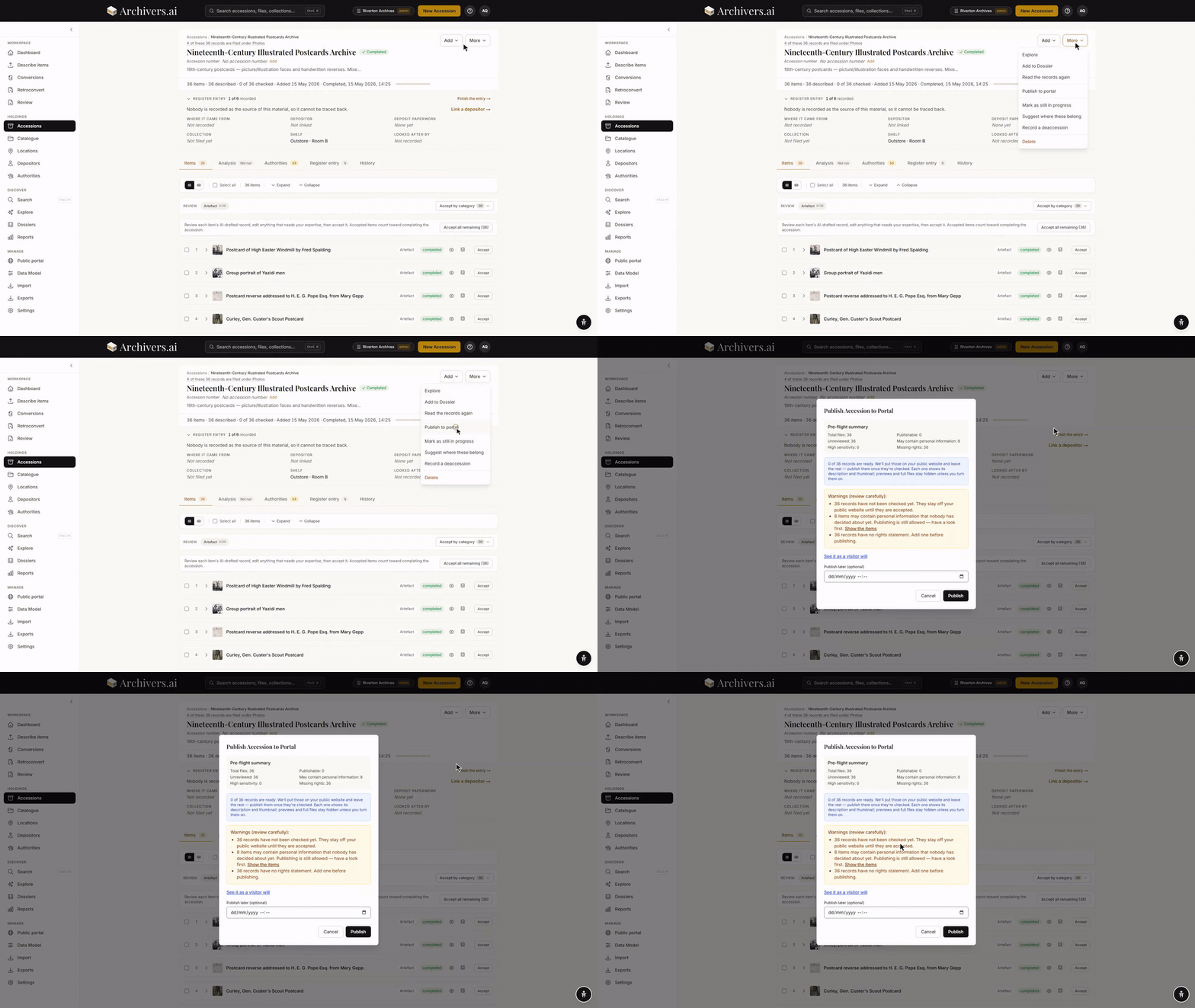
Blockers (must fix or force as admin) are listed in red; Warnings (review carefully) in amber, and they don't stop publication. An outcome line tells you plainly what will happen: how many accepted items become publicly visible with metadata and thumbnails, and whether previews or full files will also be shown (governed by your default disclosure settings for the accession).
For a fonds or a dossier, you can also set an optional public title and description that override the internal ones on the portal. A fonds additionally takes a public image URL, and a cascade tick box — Also publish descendant collections (their record groups and items are not published automatically; publish those separately).
Click Publish. When there are blockers, that button reads Force Publish (admin) instead.
Preview before publishing
Inside the same dialog, See it as a visitor will opens the record's real portal page in a new tab — visible only to workspace members, not to public visitors. Use it to check layout, metadata visibility, and how the publishing rules will display your record before you commit. It's offered for the kinds of record that have a portal page of their own.
Disclosure settings — what visitors can search and see
When you publish a record, you can control what metadata and text are visible to portal visitors — and importantly, what they can find via search:
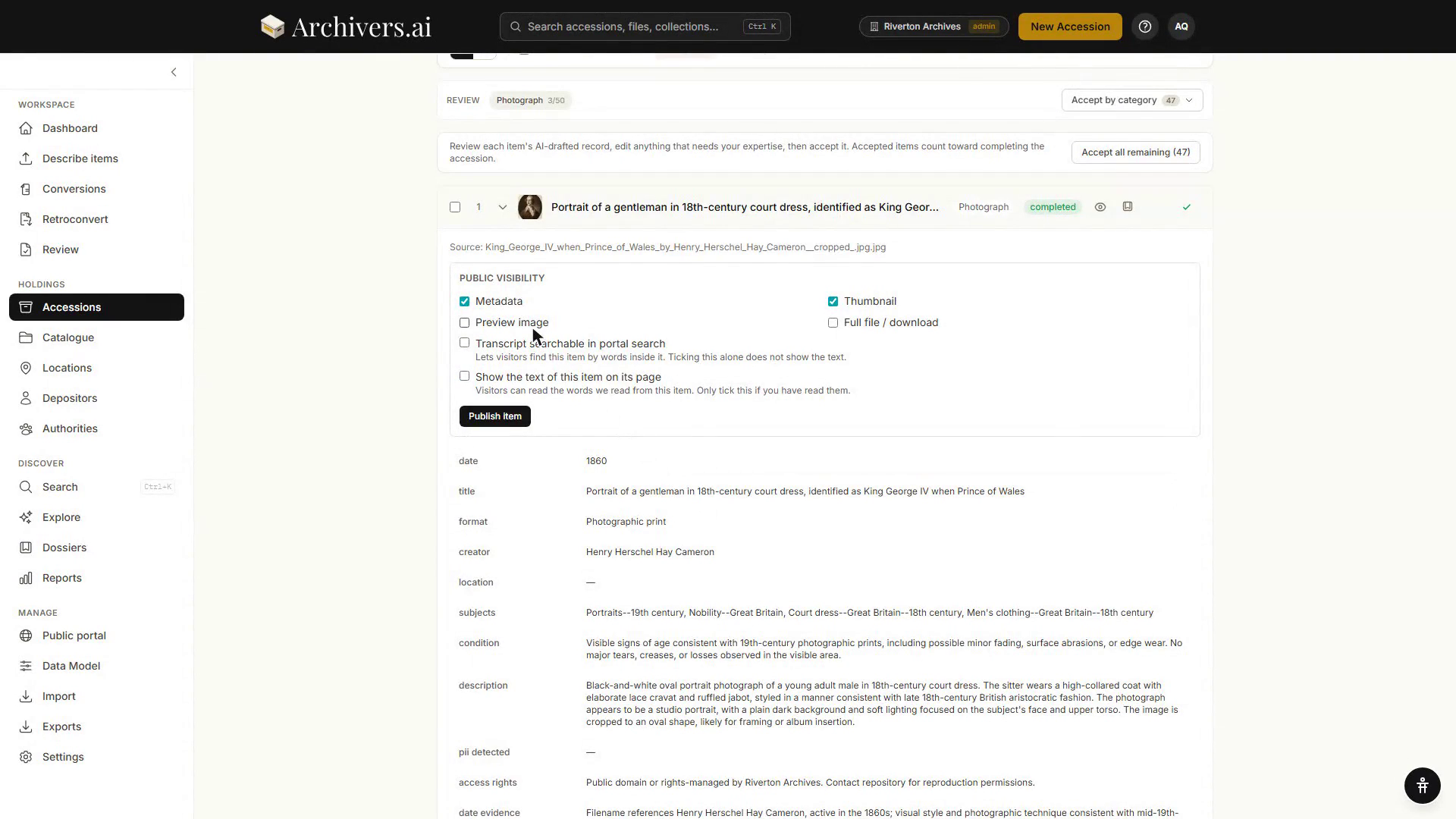
The panel gives you four tick boxes for what is shown — Metadata, Thumbnail, Preview image, Full file / download — and two for the text:
- Metadata — whether the metadata fields (title, creator, subjects, dates, condition, etc.) are displayed on the public item page. When off, visitors see only the filename and file preview. Search respects this setting: when metadata is hidden, suppressed fields won't match in portal search results.
- Transcript searchable in portal search — whether OCR'd text, audio/video transcripts, or handwritten text transcription are indexed for portal search. When off, the file is still published and viewable, but text within it won't match search queries.
- Show the text of this item on its page — separate from the one above: a transcript can be readable without being searchable, or searchable without being printed on the page.
Metadata and Thumbnail are on by default; Preview image and Full file / download are off.
These settings ensure that sensitive or restricted information (like provenance notes, donor details, or embargoed content) genuinely stay private — visitors cannot find or confirm the existence of suppressed text via search.
The search security layer: the portal's search runs against its own public-only text index, built and stored separately from the index your staff search uses, and it honours these flags. Text marked non-searchable never reaches that index, so there's no fallback for a portal search to fall back to.
Scheduling
In the same dialog, set Publish later to a future date and time instead of clicking Publish immediately. The record is saved as Scheduled and becomes public automatically at the chosen time — no need to come back and click Publish again.
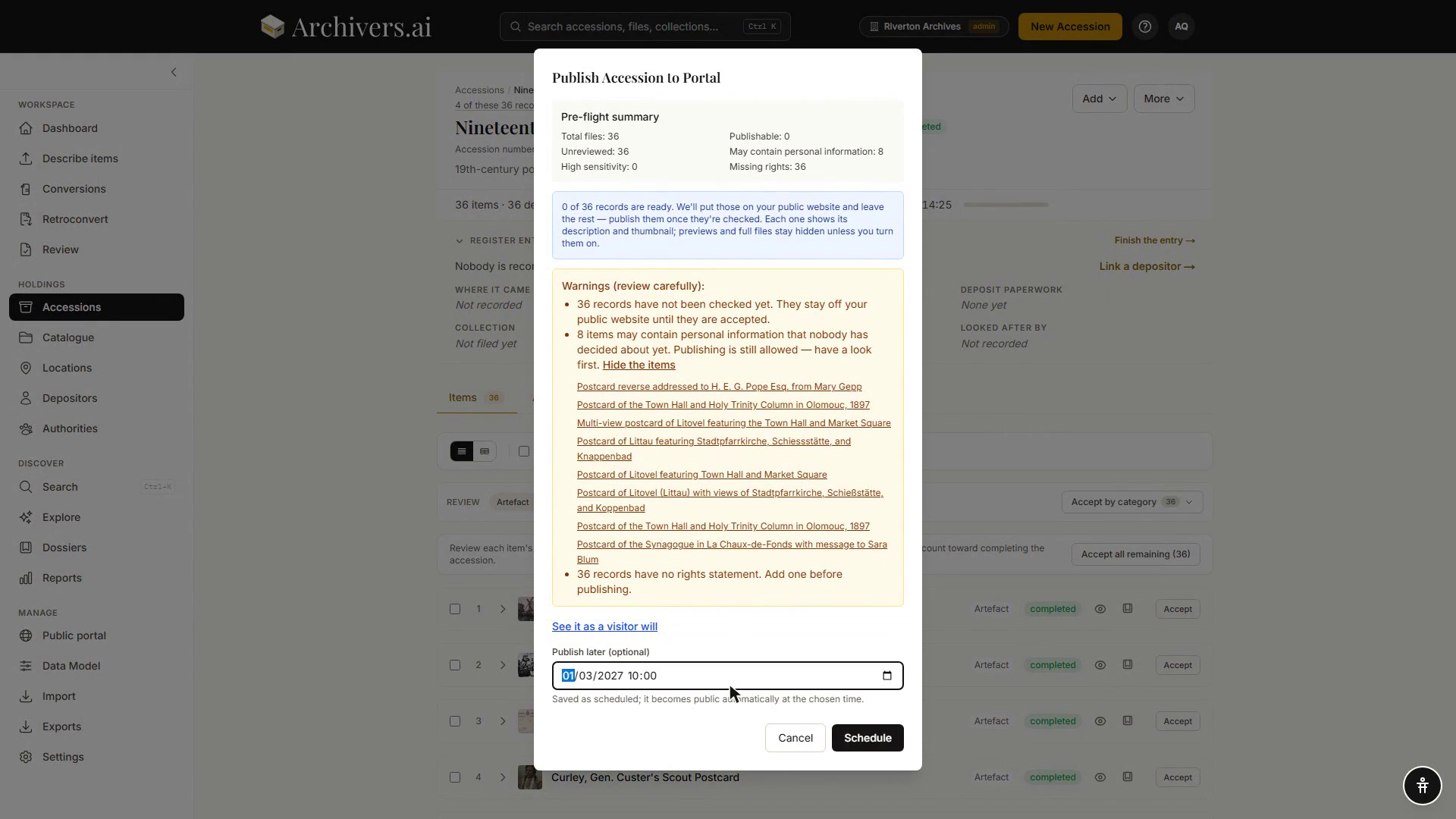
Scheduled items show a Scheduled status wherever publish status is shown, right up until the scheduled moment.
Unpublishing
Click the same button (now showing Published or Scheduled) to open the unpublish dialog. This removes the record from the public portal — visitors can no longer see it. You can add a reason (e.g. "Takedown request; rights review"), which is recorded in the audit log alongside who unpublished it and when.
Unpublishing doesn't delete anything internally — the record stays exactly as it was in your archive, just no longer shown publicly.
The Public Portal hub
Dashboard → Public Portal gathers everything in one place, for the archivist roles that may publish. Anyone else gets a plain "No access to the public portal hub".
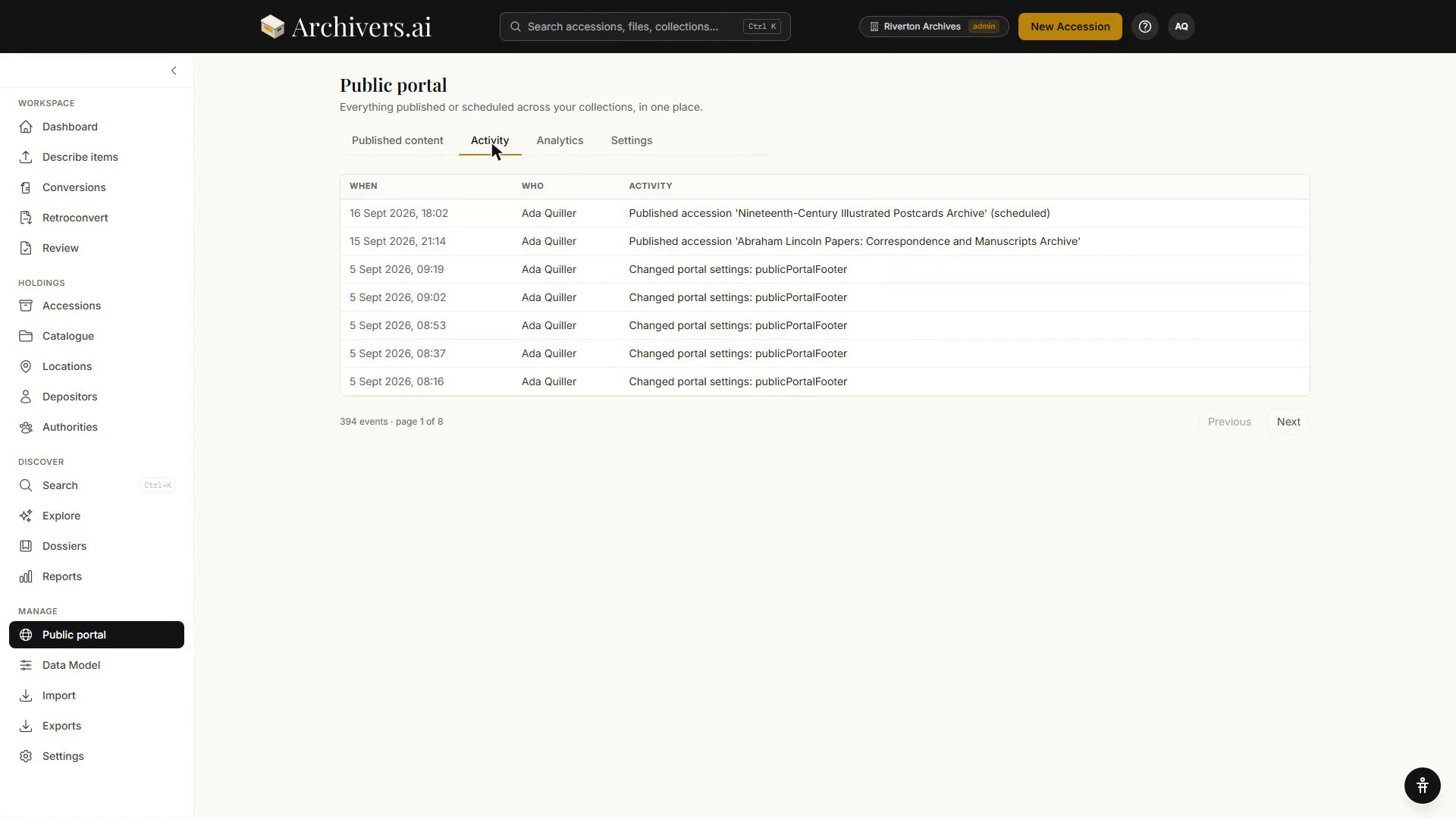
- Published content — every published or scheduled record across all types, with a link to view it live on the portal and per-row/bulk unpublish
- Activity — an audit trail of publish/unpublish/schedule actions
- Analytics — visitor figures (see Access tokens, analytics, and AI Explore)
- Settings — a shortcut into the same Settings → Public Portal configuration, for admins
See also
- Enabling the portal
- Theming and the homepage
- Exporting — for sharing records outside the portal