Access Tokens, Analytics, and AI Explore
Visitor access tokens
Visitors don't need an account to use the portal's search and browsing — but the AI Explore chat requires a lightweight access token, requested with just an email address.
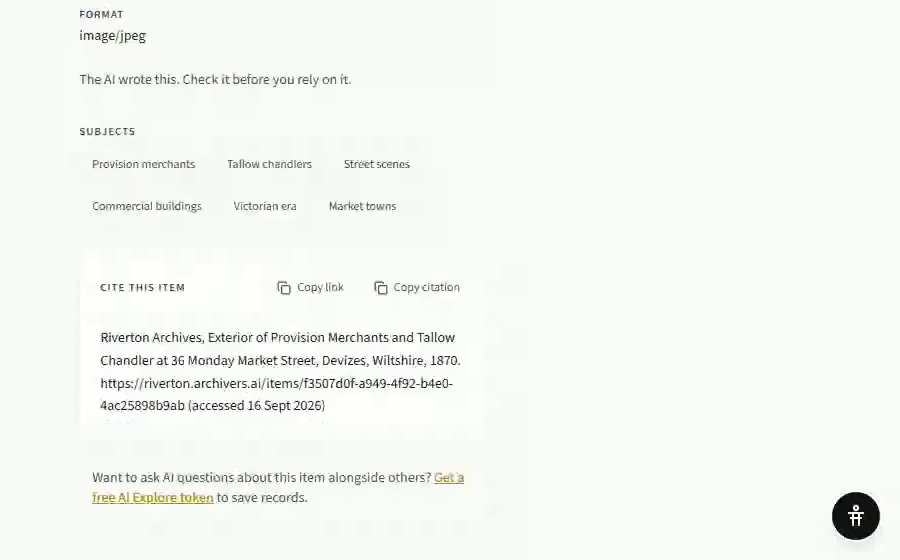
How a visitor gets one: they click into the AI Explore box, enter their email, and receive a magic link by email. Clicking the link verifies the token in their browser (a token is good for a fixed number of days). No password, no account. They can optionally opt in to updates about new content from the archive.
Managing tokens as an admin: go to Settings → Public Portal → AI Explore and follow View token usage →. (The same link sits above the figures on the portal hub's Analytics tab.) The AI Explore tokens page shows three cards:
- AI Explore status — enabled or disabled, with the per-token credits and validity in days beneath it
- Active tokens — how many are currently valid, and credits used out of credits allocated
- Spend this month — in pounds, with the number of AI turns behind it and, if a monthly budget is set, a bar showing how much of it is gone
Beneath them, Active token holders lists every valid token: email, credits, issued date, last used, expiry, and marketing opt-in — each with a Revoke action if you need to cut off a specific token early. With none issued yet, it says so and points out that visitors request them from the portal homepage.
AI Explore and its credit cap
The portal's AI chat (branded AI Explore to visitors) answers questions in plain language, grounded only in your published collection, and cites the specific items it draws on in every answer.
Every visitor token comes with a fixed number of credits — each back-and-forth exchange ("turn") uses one. The chat box shows the visitor how many turns they have left. Once a token's credits run out, that visitor needs a fresh token (a new magic-link request) to keep chatting.
On top of per-token credits, your organisation can have a monthly budget (in pounds). Once the portal's AI spend for the month reaches that budget, AI Explore stops answering for everyone until the next month — visitors see a plain message explaining this.
AI Explore is managed by your account manager — the AI Explore tab of Settings → Public Portal is read-only. You can see its current status, per-token credit allowance, token validity period, and monthly budget there, but changing any of those means contacting Archivers.ai rather than flipping a toggle.
Analytics
The Analytics tab on the Public Portal hub (Dashboard → Public Portal) shows your visitor figures for a period you choose — the last 30 days by default, with buttons for longer runs and a financial year. Nothing that identifies a visitor is collected.
- Total views, AI turns and AI spend across the period
- Page types — homepage, collection, accession, item, dossier, and so on
- Daily views
- Top searches and Top countries
- Download as spreadsheet — the same figures as a CSV, for an accreditation application or a funder return
Use it to see what's actually getting looked at before you invest more curation effort in a particular part of your archive.
Visitor features
Contact. Set a Contact email (and optionally a Contact URL) under Settings → Public Portal → General → Contact, and visitors can send a message to your archive from the portal's contact page. A message sent from a record carries which record it was about.
My saved records. With AI Explore switched on, a visitor holding a token can save individual records as they browse, and get back to the list from My saved records in the portal navigation. They can ask AI questions across just that list, remove single records, or throw the whole thing away with Delete this list — "the records stay in the archive, only your list goes".
Sorting. When browsing by subject, creator, place, or any other facet, visitors can sort results by Newest first or Oldest first to surface either recent material or historical depth.
See also
- Publishing, scheduling, and unpublishing
- OAI-PMH and IIIF for aggregators
- What is Explore? — the equivalent AI research assistant for your internal workspace