Your First Accession
An Accession is one batch of files you've ingested into Archivers.ai — typically a single donation, a single hard drive, or a single scanning session. This is the walkthrough for getting one in and described.
The six-step wizard
Click New Accession in the top bar. You'll see a six-step stepper at the top of the page:
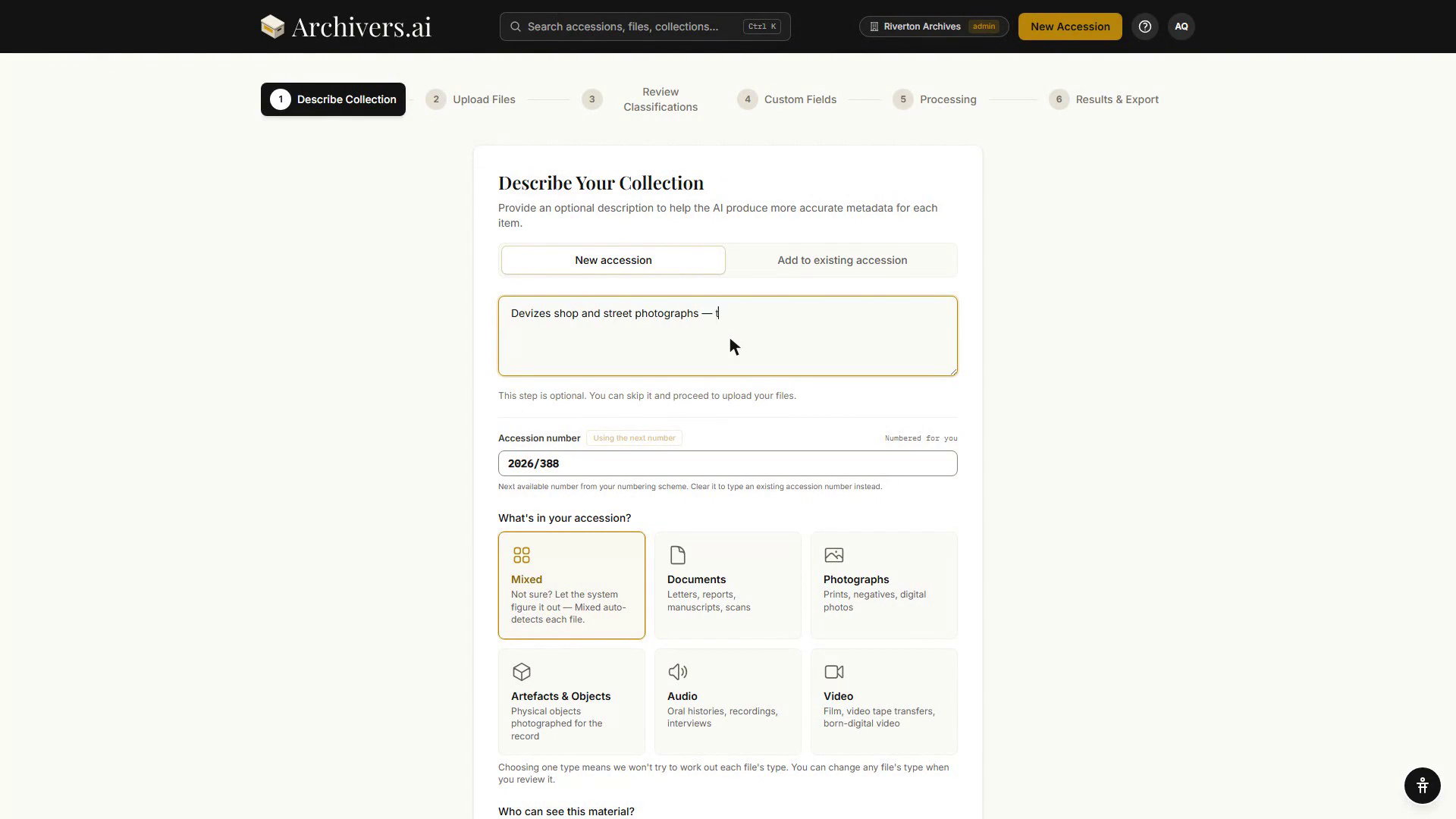
| Step | What you do |
|---|---|
| 1. Describe Collection | Optional one-line description. Pick a collection type (Mixed, Documents, Photographs, Artefacts & Objects, Audio or Video), and say who can see the material. |
| 2. Upload Files | Drag and drop or browse to add files. |
| 3. Review Classifications | Check what the AI extracted; correct anything that's off. |
| 4. Custom Fields | Fill in any organisation-defined fields (set up in Data Model). |
| 5. Processing | Background work — OCR, classification, transcription, authority linking. |
| 6. Results & Export | Preview the catalogue record and export to your chosen format. |
You can skip steps 1 and 4 and come back later — neither is required.
Step 1 — Describe the collection
A one-line description like "Correspondence and manuscripts from the Shaftesbury Estate, 1956–1967" dramatically improves AI accuracy. The model uses it as orientation when it can't be certain from the file alone.
Then pick the collection type:
- Documents — letters, reports, manuscripts, scans
- Photographs — prints, negatives, digital photos
- Artefacts & Objects — physical items photographed for the record
- Audio — oral histories, recordings, interviews
- Video — film transfers, video tape, born-digital video
- Mixed — several types, auto-detected per file
Picking a single type skips per-file auto-categorisation and is faster. You can still override any file individually in Step 3.
Beneath the tiles sit the register-entry questions — How much arrived, Dates of the records and Public records — a Depositor (optional) picker, and three collapsible drawers: Details about the whole collection, Donor & provenance and Completeness & scope. All optional, all applied to the whole batch.
Step 2 — Upload files
Drag from your file manager, or click Browse. The Community (free) plan caps each accession at 10 items, with 10 MB per document or image and 50 MB per audio file; video isn't available. Paid plans lift the per-accession cap entirely; see Uploading Files.
Uploads continue in the background. You can close the tab.
Files on the Community (free) plan are automatically deleted 28 days after upload. Upgrade to keep your archive permanently.
Step 3 — Review classifications
Each file gets a per-category metadata record. Photos get conservation-style fields (condition, materials, dimensions), documents get bibliographic fields (creator, date, subjects), audio gets transcripts and runtime, and so on.
The review screen lets you:
- Accept by category — bulk-approve everything in one category at once
- Expand a row to see and edit individual fields
- Flag items you're unsure about for later
See Reviewing classifications for the full guide.
Step 4 — Custom fields
If your organisation has defined additional fields in Data Model (e.g. Donor, Reference code, Box number), you'll see them here. Anything set up at the collection scope appears once; anything at the item scope applies per file.
Step 5 — Processing
Processing runs in the background. You can leave the page. Typical durations:
- Documents / images: under a minute each
- Audio / video: roughly real-time per minute of media
- Authority resolution against LCSH / FAST / Getty / VIAF / GeoNames: a few seconds per entity
Processing spends credits: 1 for an image, 1 per page for a document, 1 per started minute of video and 1 per started five minutes of audio.
Step 6 — Results & export
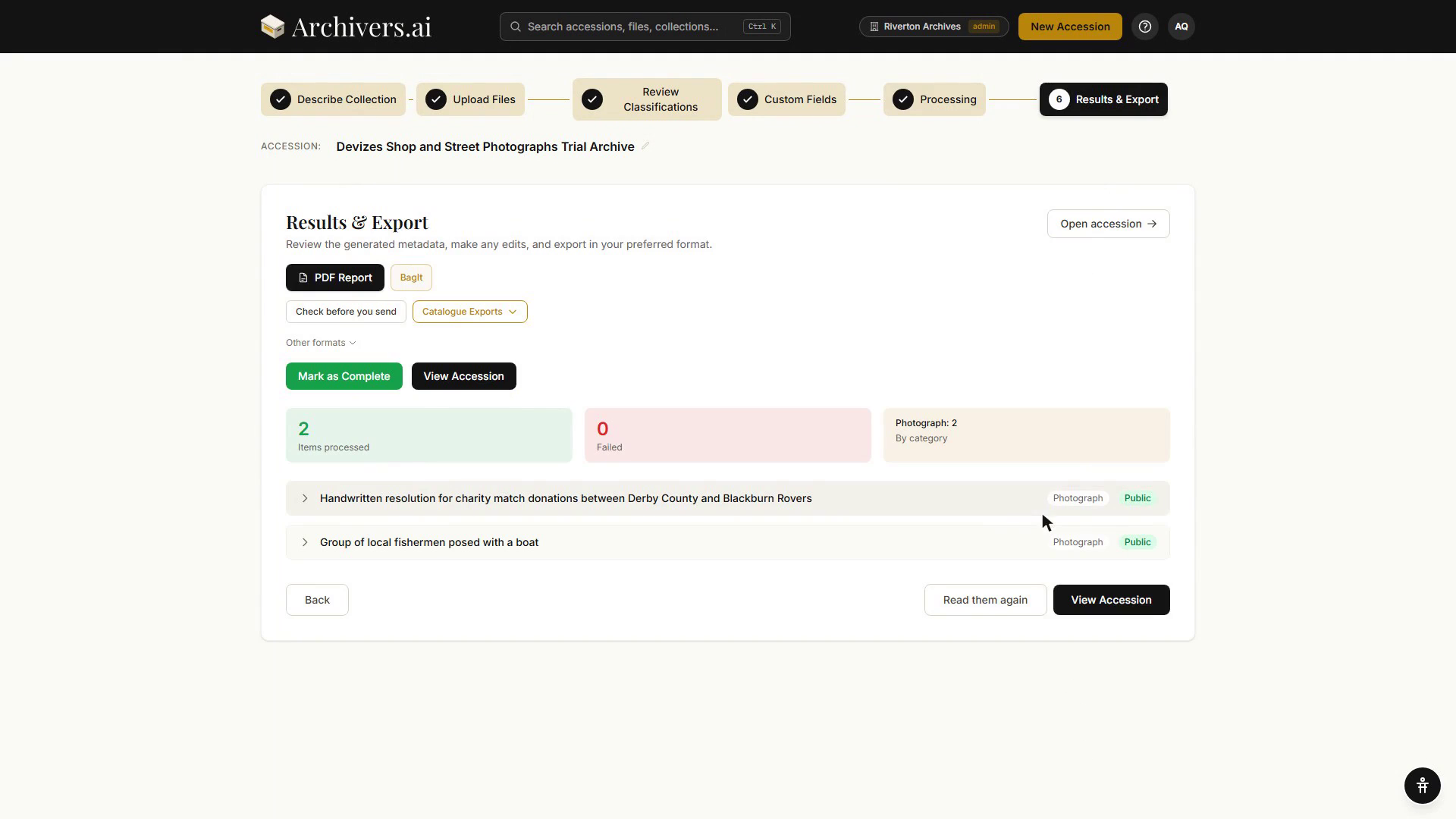
Click Mark as Complete when you're happy with the records — the status doesn't change on its own. The accession then lands in Accessions. From there you can:
- Switch the Tab to Analysis for a collection-level summary
- Switch to Authorities to review and verify linked subject headings, people, and places
- Switch to Register entry to finish the acquisition details, or History to see what has been changed and by whom
- Export immediately via the bottom panel — PDF Report, BagIt, EAD3 XML, AtoM CSV, ArchivesSpace CSV, Archivematica CSV, and more (see Export formats)
Next steps
- Add your accession to a Fond so it sits in the right place in your archival hierarchy
- Review the Authorities tab — link your subject headings to authoritative records
- Export to the catalogue you actually use (Export formats)