Security Settings
The Security page (Sidebar → Settings → Security) is where you set up two-factor authentication (2FA), see how many backup codes you have left, and sign out of other devices.
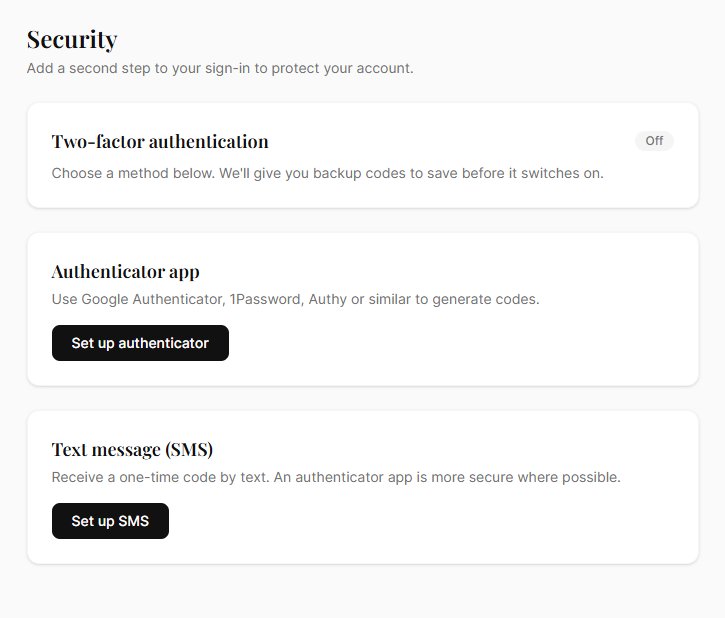
Two-Factor Authentication (2FA)
Two-factor authentication adds a second verification step when you sign in — even if someone has your password, they cannot get into your account without your phone.
A card at the top shows whether 2FA is On or Off. With it off: "Choose a method below. We'll give you backup codes to save before it switches on."
Two methods
Authenticator app — recommended
An app on your phone generates the code. Works with Google Authenticator, 1Password, Authy and similar.
- Works offline
- The codes are worked out on your own phone and checked here — nothing leaves the service and no other company is involved. If where your data is handled matters to your institution, this is the option to choose
- If you lose your phone, you'll need your backup codes
Text message (SMS)
Sends a one-time code to your mobile number by text.
- Works with any phone — no app needed
- A telephony company handles the message, so unlike the authenticator app it involves a third party. See Settings → Data for who handles what
- Requires phone signal to receive the code
- If it isn't available you'll see "SMS verification isn't available right now."
Setting up 2FA
Authenticator app
- Click Set up authenticator.
- Confirm your password and click Continue.
- A QR code appears. Scan it with your authenticator app, or use "Can't scan? Enter this key manually" and paste the key.
- Type the 6-digit code from the app and click Verify & continue.
Text message
- Click Set up SMS.
- Confirm your password and enter your number in international form (e.g.
+447700900123), then click Send code. - A code arrives by text. Enter it and click Verify & continue.
Save your backup codes
After verification, ten one-time backup codes appear under Save your backup codes: "Each code works once. Store them somewhere safe — they are the only way back in if you lose your phone. You won't see them again."
- Copy puts them on your clipboard; Download saves them as
archivers-backup-codes.txt - Then click I've saved these — turn on 2FA
- Each code works once and cannot be reused
- Do not share these codes with anyone
You can issue a fresh set later with Regenerate backup codes — confirm your password, click Regenerate, and the old set stops working. The page shows Backup codes remaining so you know when you're running low.
Using 2FA at sign-in
When 2FA is enabled, you sign in with your email and password as normal, then enter your code: the 6-digit code from your authenticator app, or the one texted to you. A backup code works in place of either. The challenge expires after ten minutes and allows five attempts.
Using both methods
You can enrol both an authenticator app and SMS. When you have, the status card gains Default method at sign-in with Authenticator app and Text message buttons — pick whichever you want to be asked for first.
Turning 2FA off
- Go to Settings → Security.
- Click Turn off 2FA.
- Confirm your password and click Turn off 2FA again.
After that, you'll only need your password to sign in.
Signed-in devices
"If you've lost a phone or used a shared computer, sign out everywhere except this one." — Sign out of other devices ends every other session immediately.
Requiring 2FA for your organisation
Admin-only. If you're an organisation admin, go to Settings → Organisation → Security and turn on Require two-factor authentication: "When on, every member must set up an authenticator app or SMS before they can use Archivers.ai."
Members who haven't set up 2FA are held at the Security page until they enrol — warn your team before enabling it. Members can choose either method.
If you're locked out
Lost your phone and your backup codes? Contact support@archivers.ai. An organisation admin cannot reset a colleague's 2FA — only Archivers support can.
See also
- Your profile — display name, email, password
- Organisation overview — org-level settings including 2FA enforcement